
Description
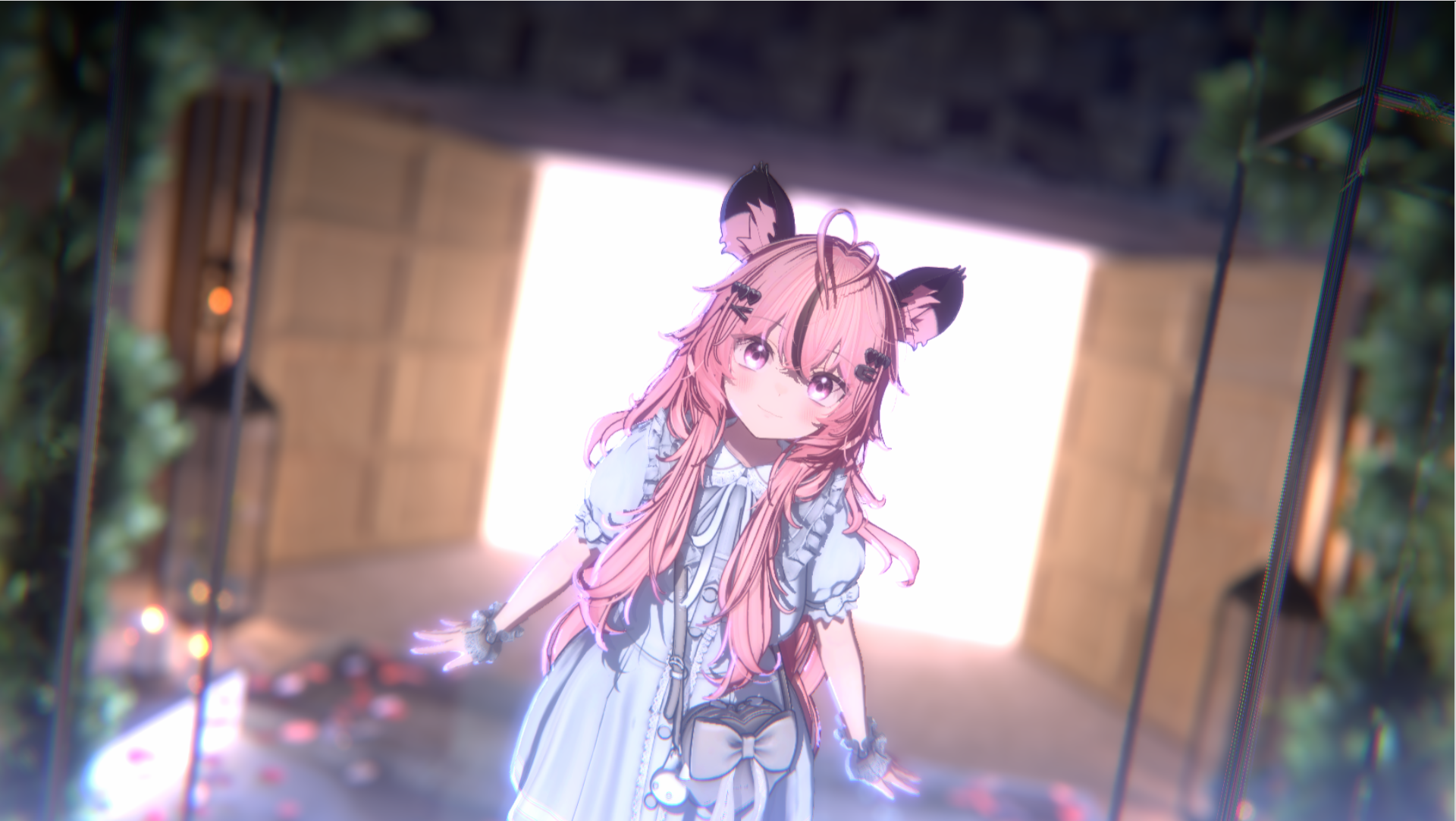
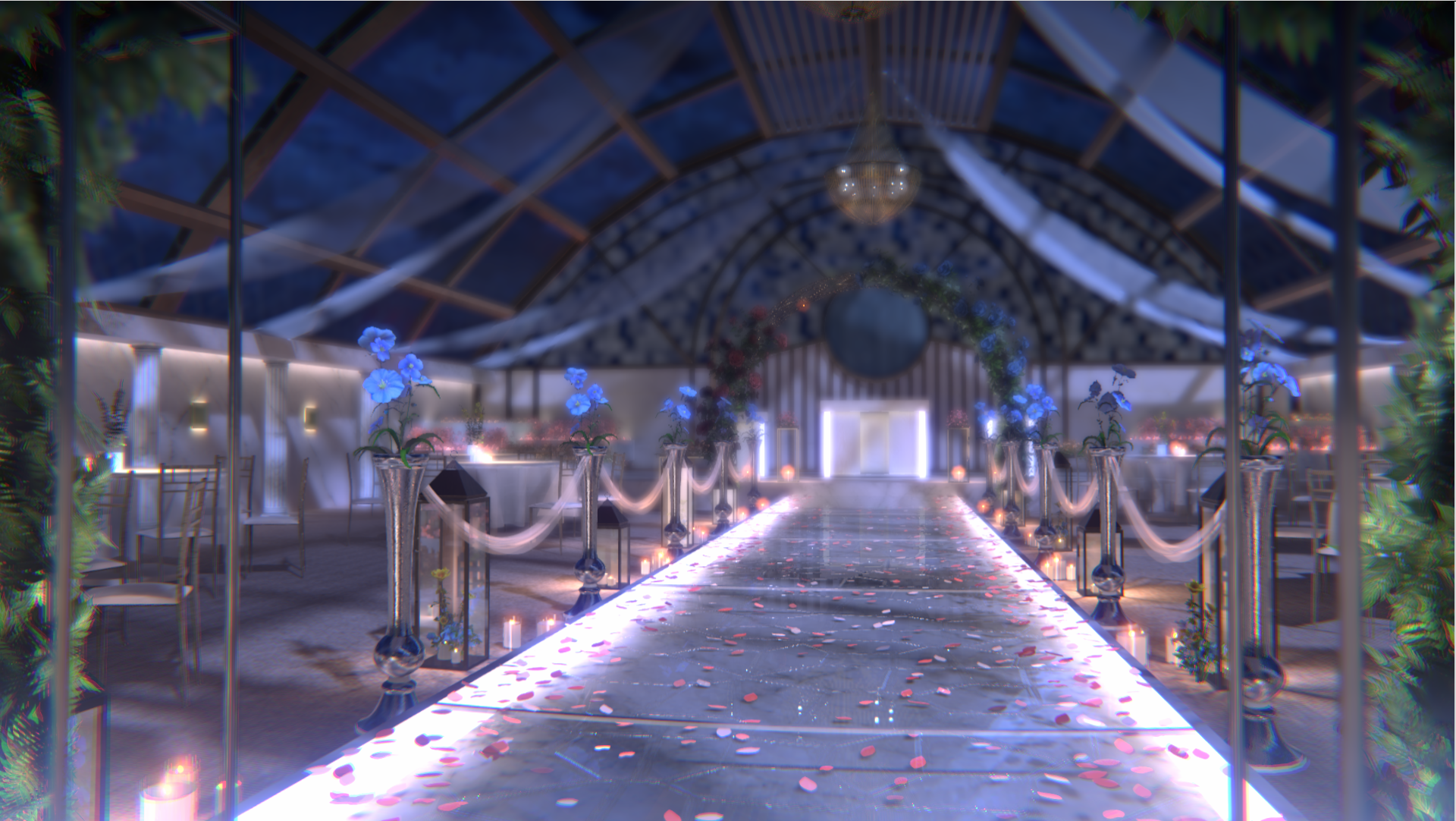
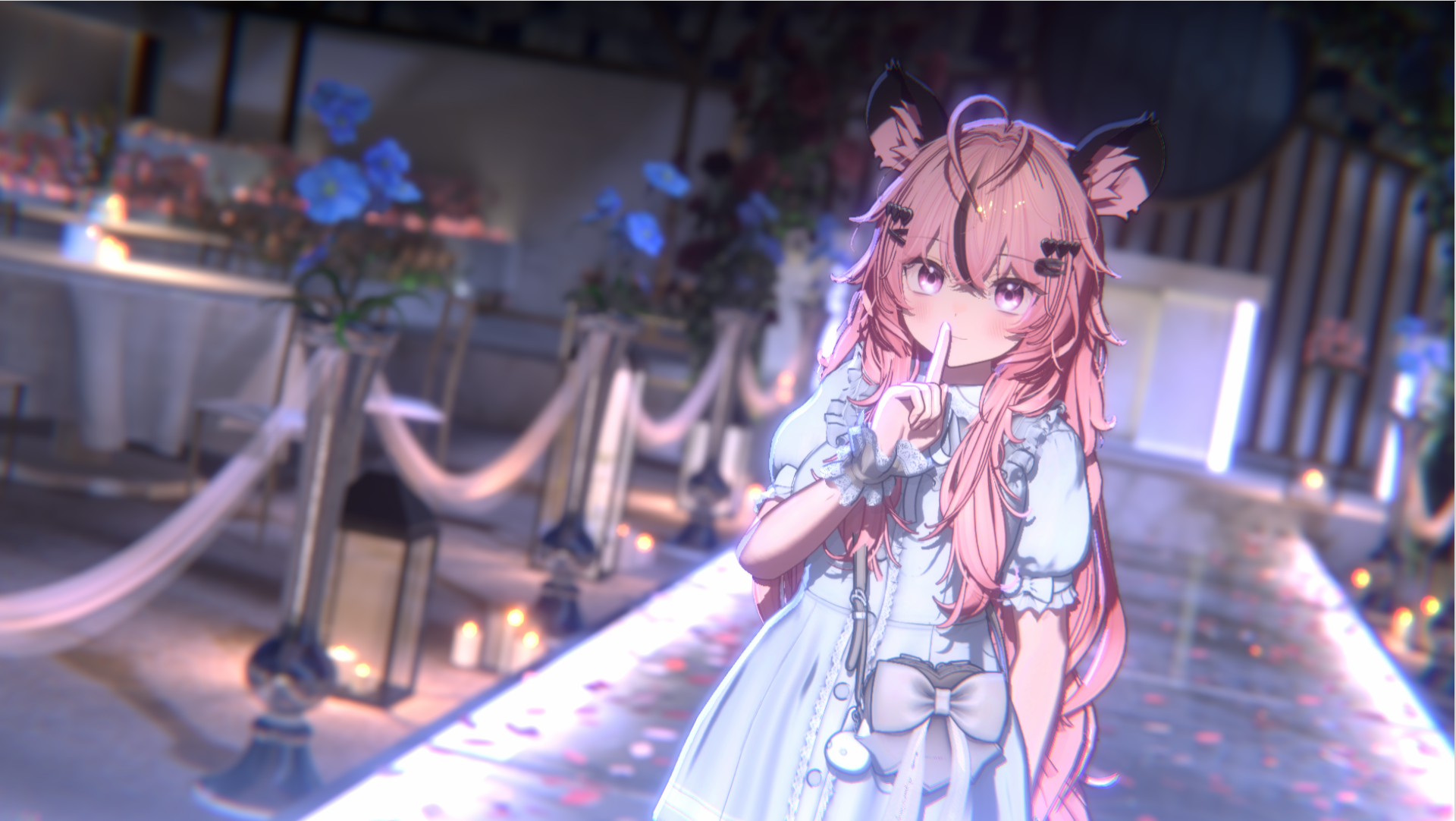
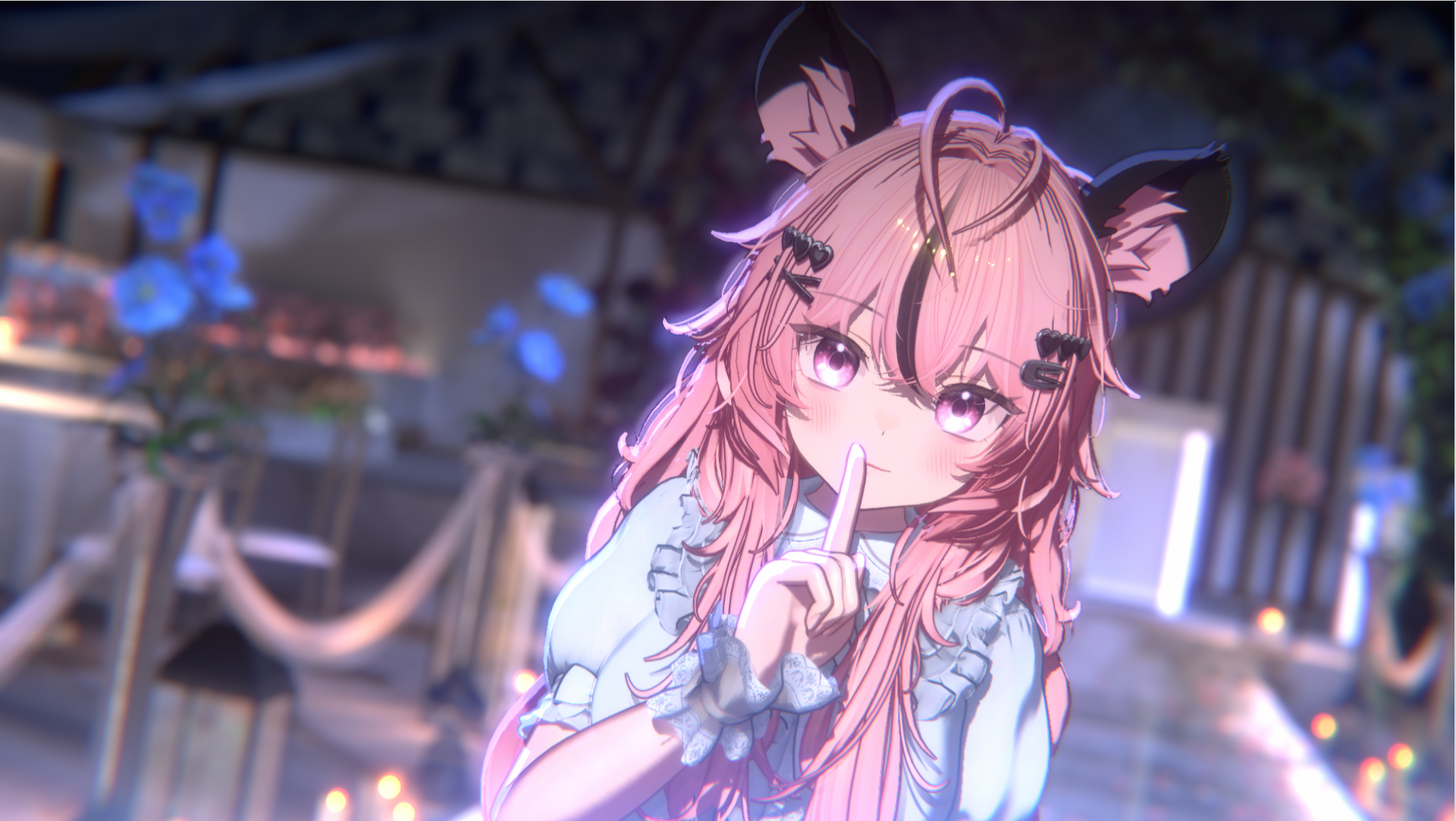
【Warudo PRO】 Wedding Hall Set
Day & Night Versions Included | Various Atmospheric Effects
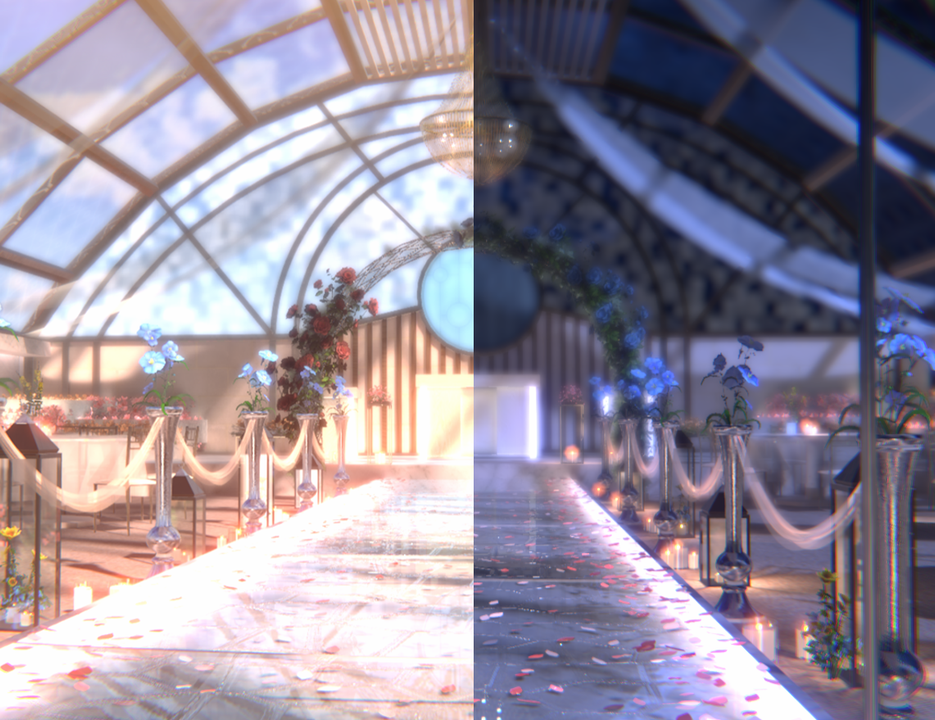
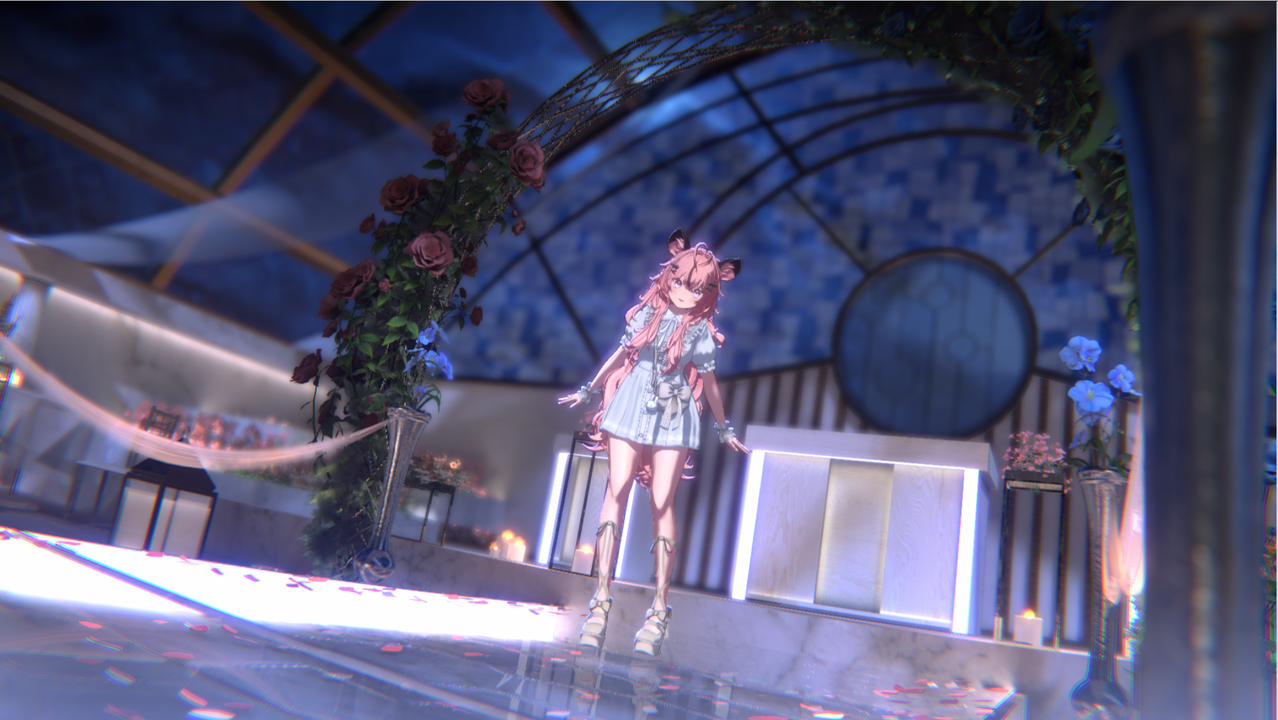
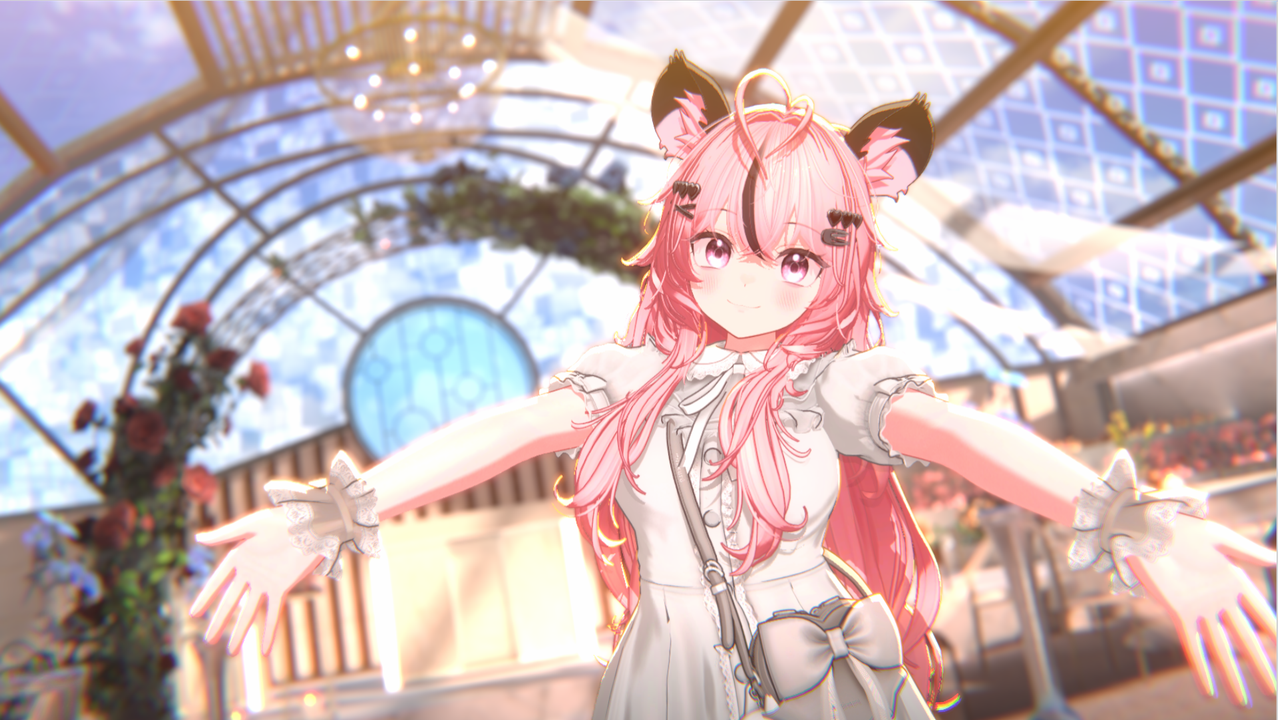
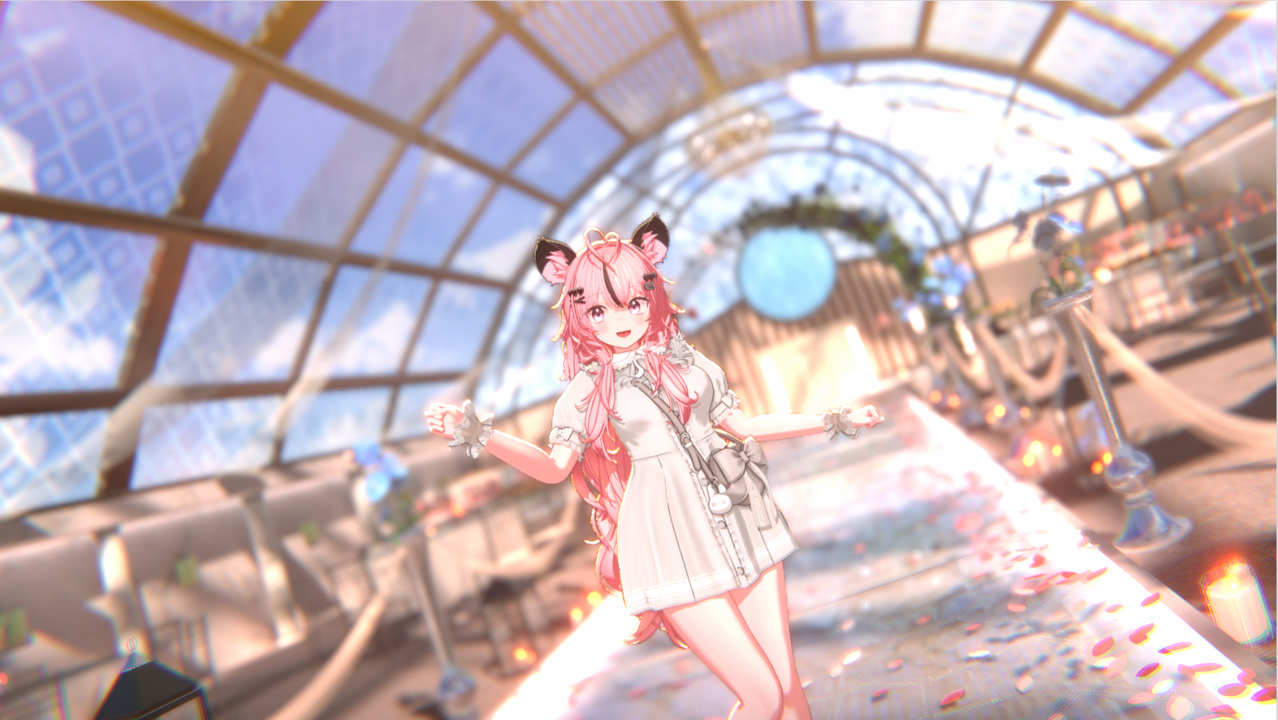
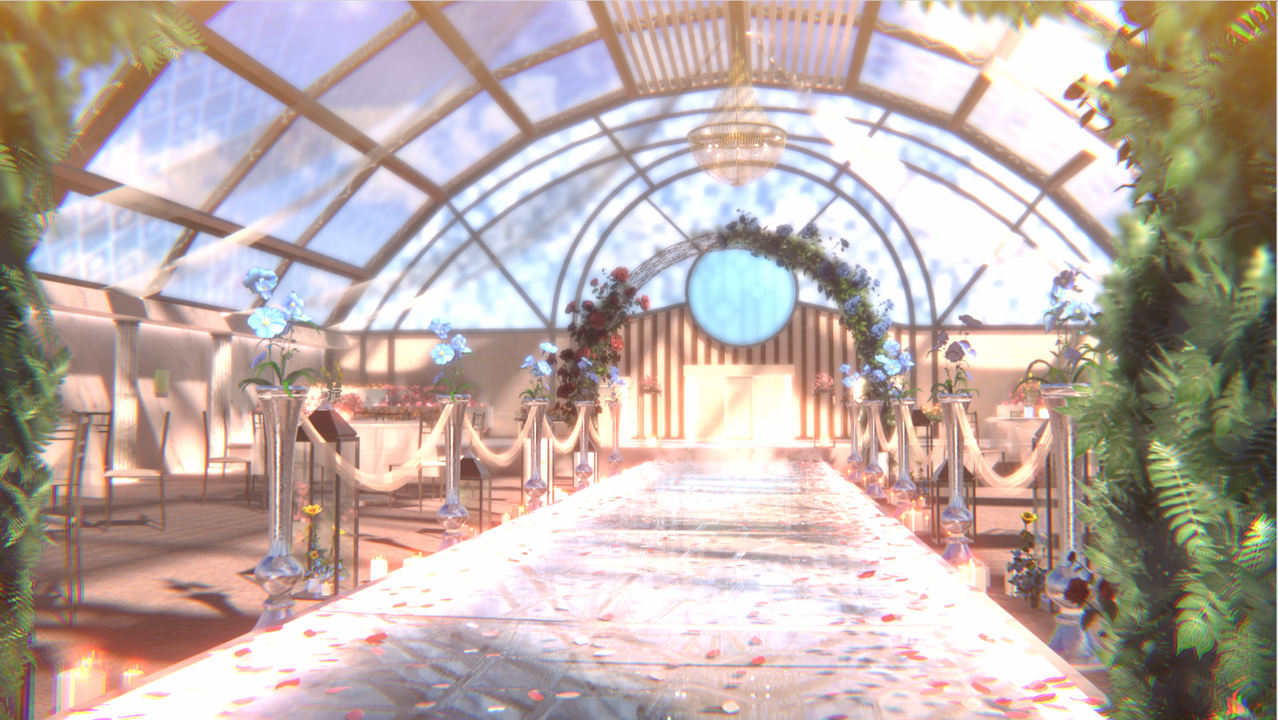
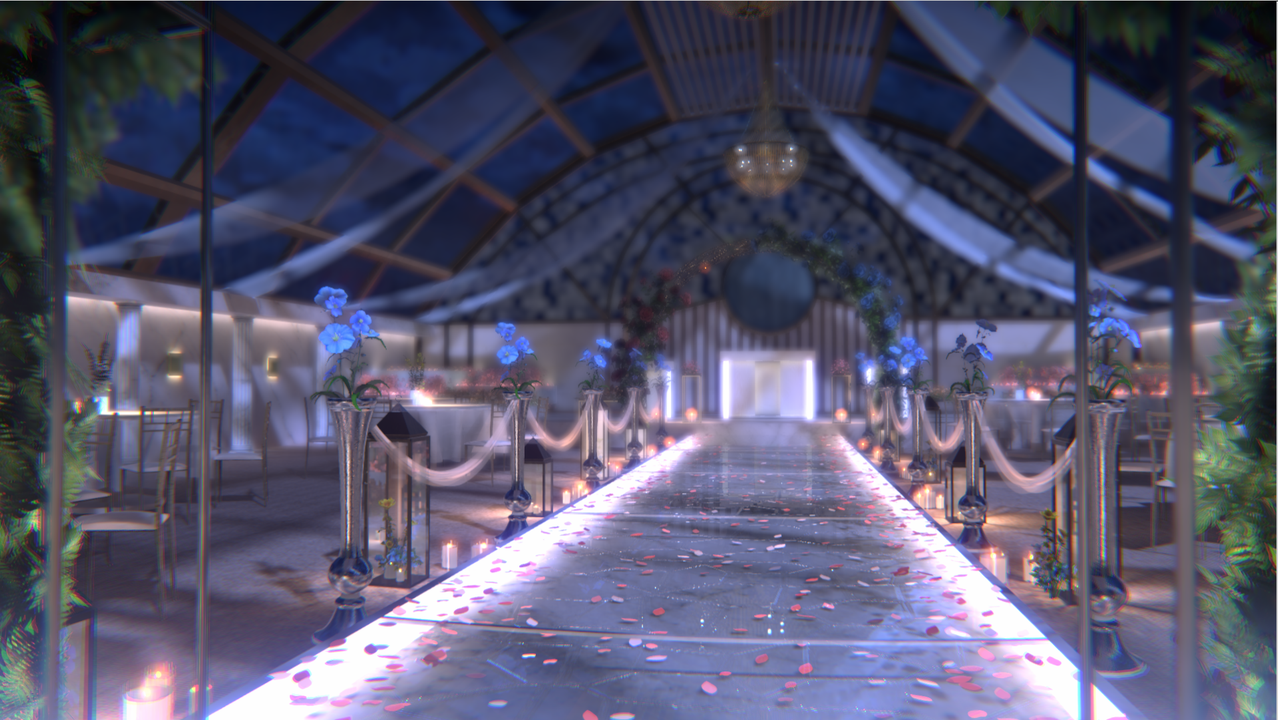
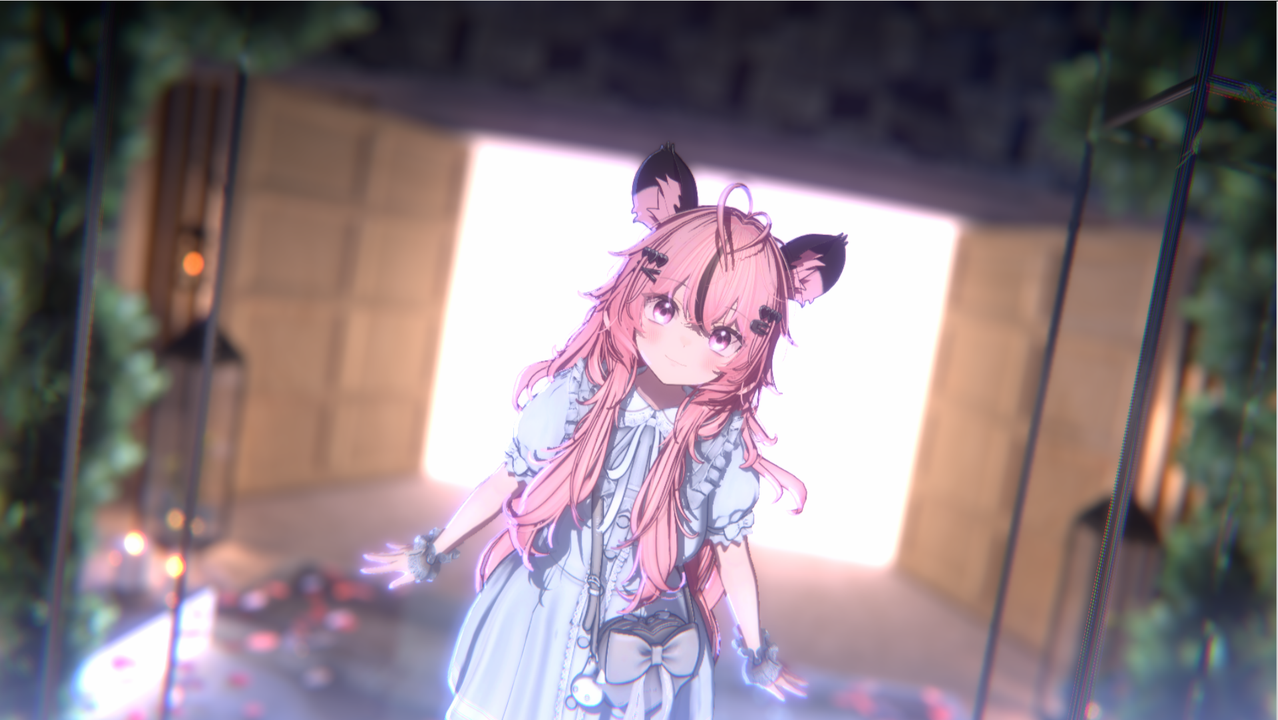
This is a premium Wedding Hall background set designed for both Day and Night versions, allowing for versatile scene directions.
This product is a package that includes both Day and Night scenes,
offering a better value than purchasing each scene individually.
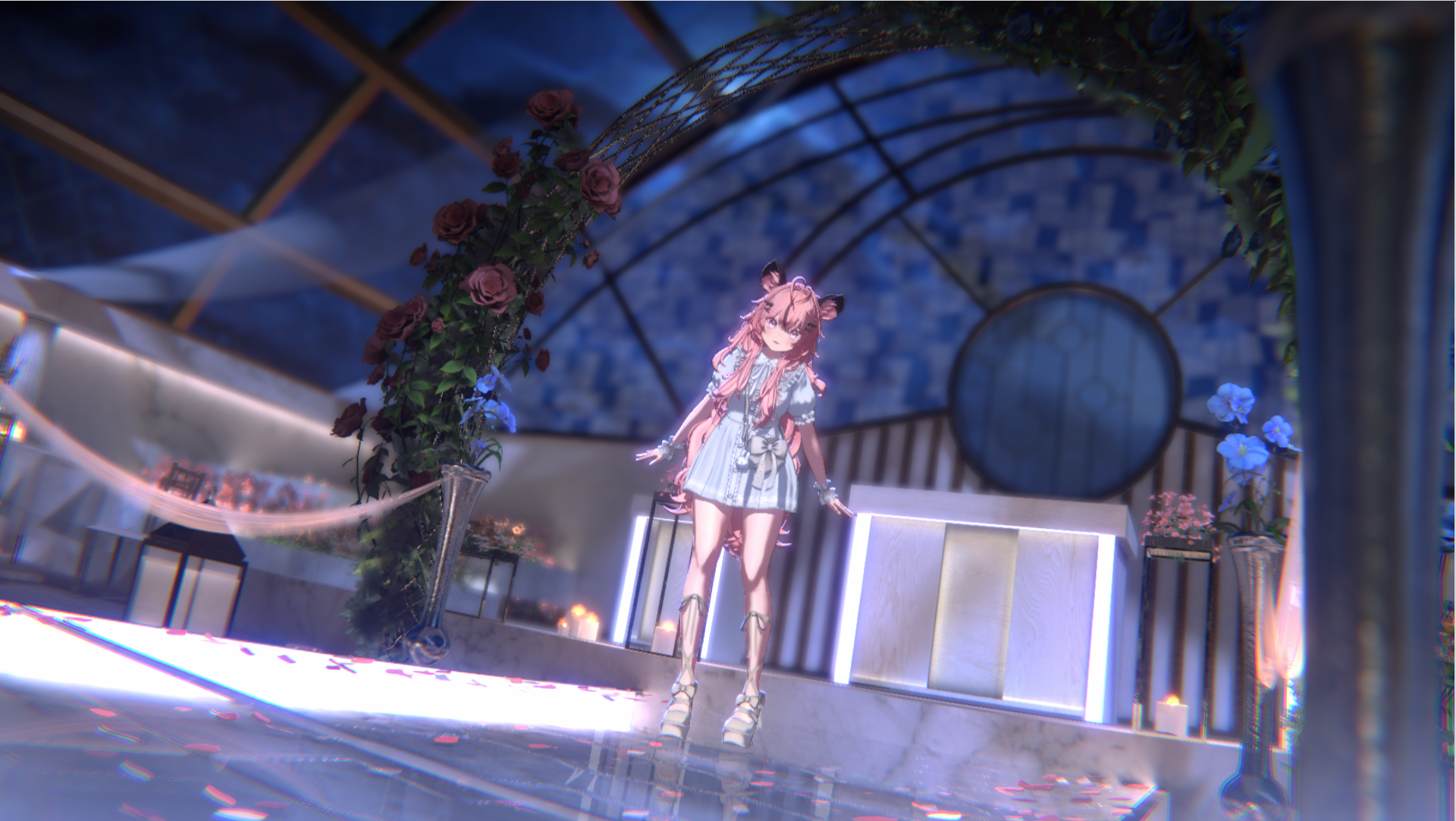
< Warudo Pro Screenshots >
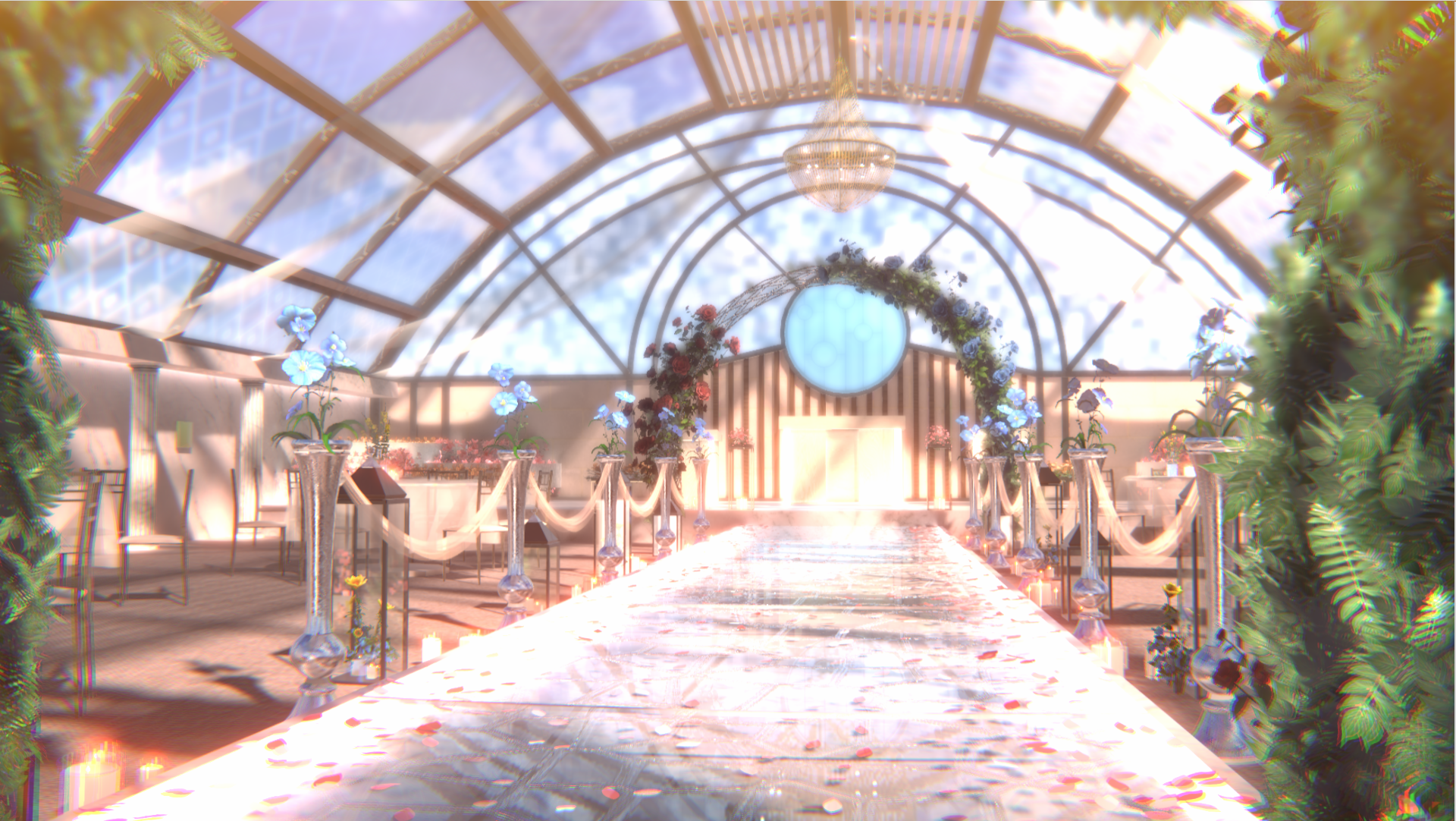
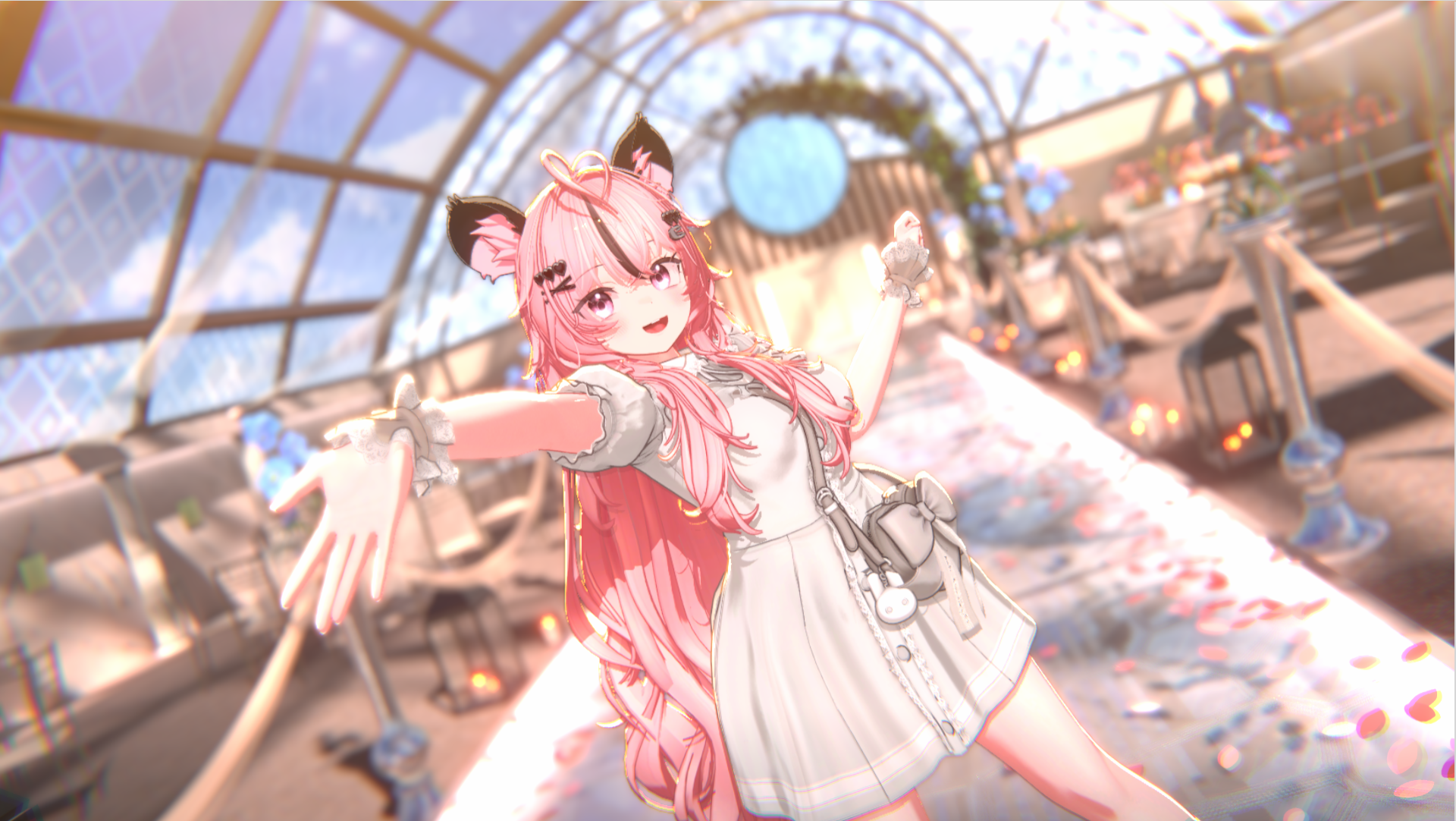
⚠ Essential Notice Before Purchase
- Please ensure you verify the Regular vs. PRO version before buying.
- This product page is exclusively for WARUDO PRO. Backgrounds and props will not appear in incompatible versions.
- Due to the nature of digital goods, refunds are not available after purchase. Please review the videos and images carefully.
- This background was developed and optimized for an RTX 3060ti environment.
Warudo Background Setup Guide
Quick and easy environment setup using the Studio Laming Plugin
1
Warudo Background File Setup
By using the Studio Laming Plugin, you can enable automatic downloading and setup of background files.
1. Open Data Folder
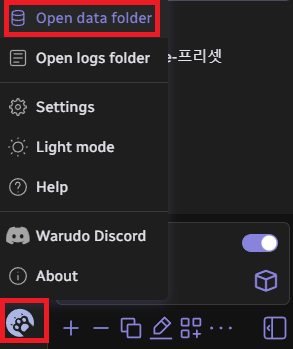
 Click the icon in the bottom-left corner of the Warudo editor and select 'Open data folder'. Then, copy the path of the StreamingAssets folder.
2. Run Auto-Merge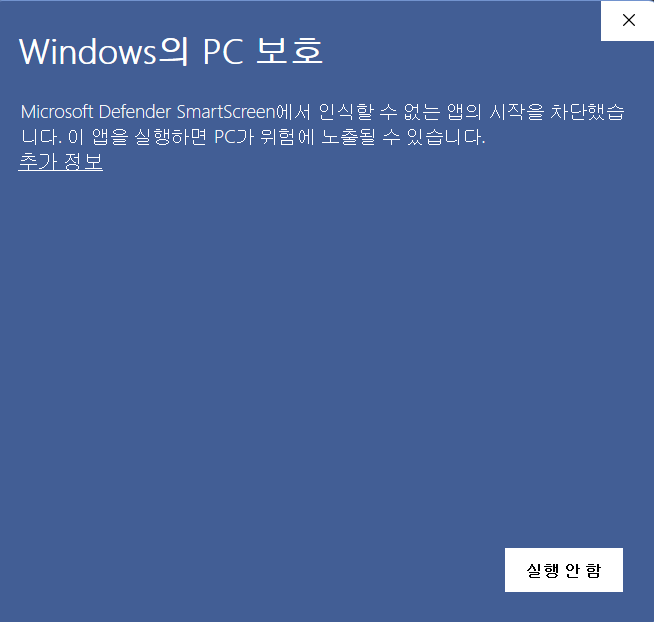 Run the executable file (.EXE) included in your download. If a security window appears, click "More Info" and then select "Run anyway."
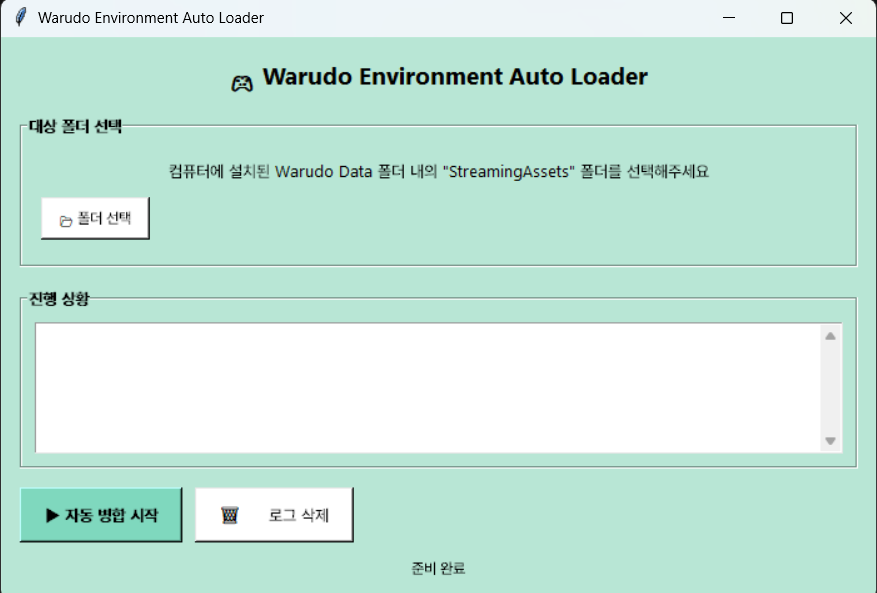 Click "Select Folder" (폴더 선택) and paste the path you copied. Then, click "Start Auto-Merge" (자동병합 시작). The files will be placed in their correct locations automatically!
2
Warudo Environment Setup (Plugin)
1. Subscribe to Plugin
Subscribe on Steam Workshop
Please subscribe to the Studio Laming Plugin on the Steam Workshop.
2. Check for Icon
Once subscribed, the Studio Laming Plugin icon will appear inside Warudo.
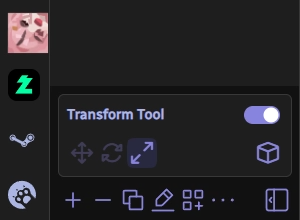
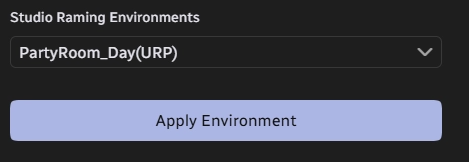
3. Apply Environment
Select your desired background and click Apply Environment to complete the setup.
Pro Streaming Tips
1. Hiding UI & Gizmos (OBS Setup)
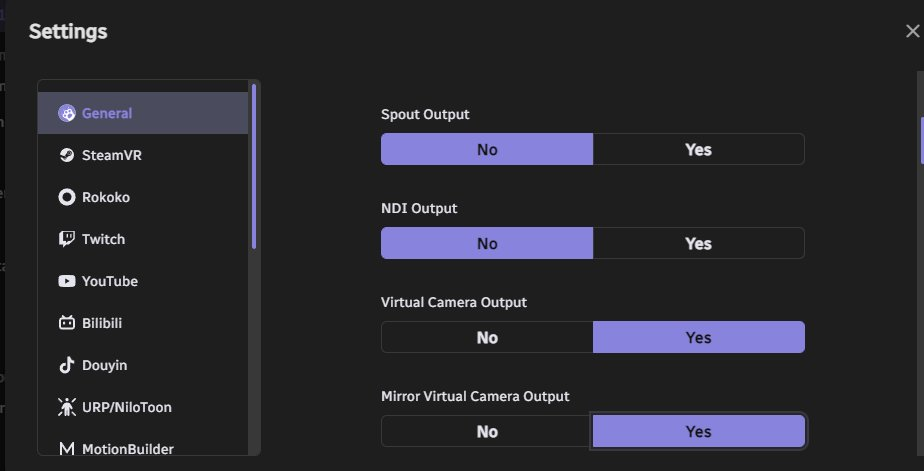
Enable Virtual Camera Output in Warudo settings. In OBS, set your 'Video Capture Device' to 'Warudo Cam' to stream without the editor UI visible.
2. Chrome PiP (Picture-in-Picture) Mode
When using window capture, use a PiP extension to keep the video window floating on top. This prevents the window from "freezing" when hidden and solves resolution scaling issues.
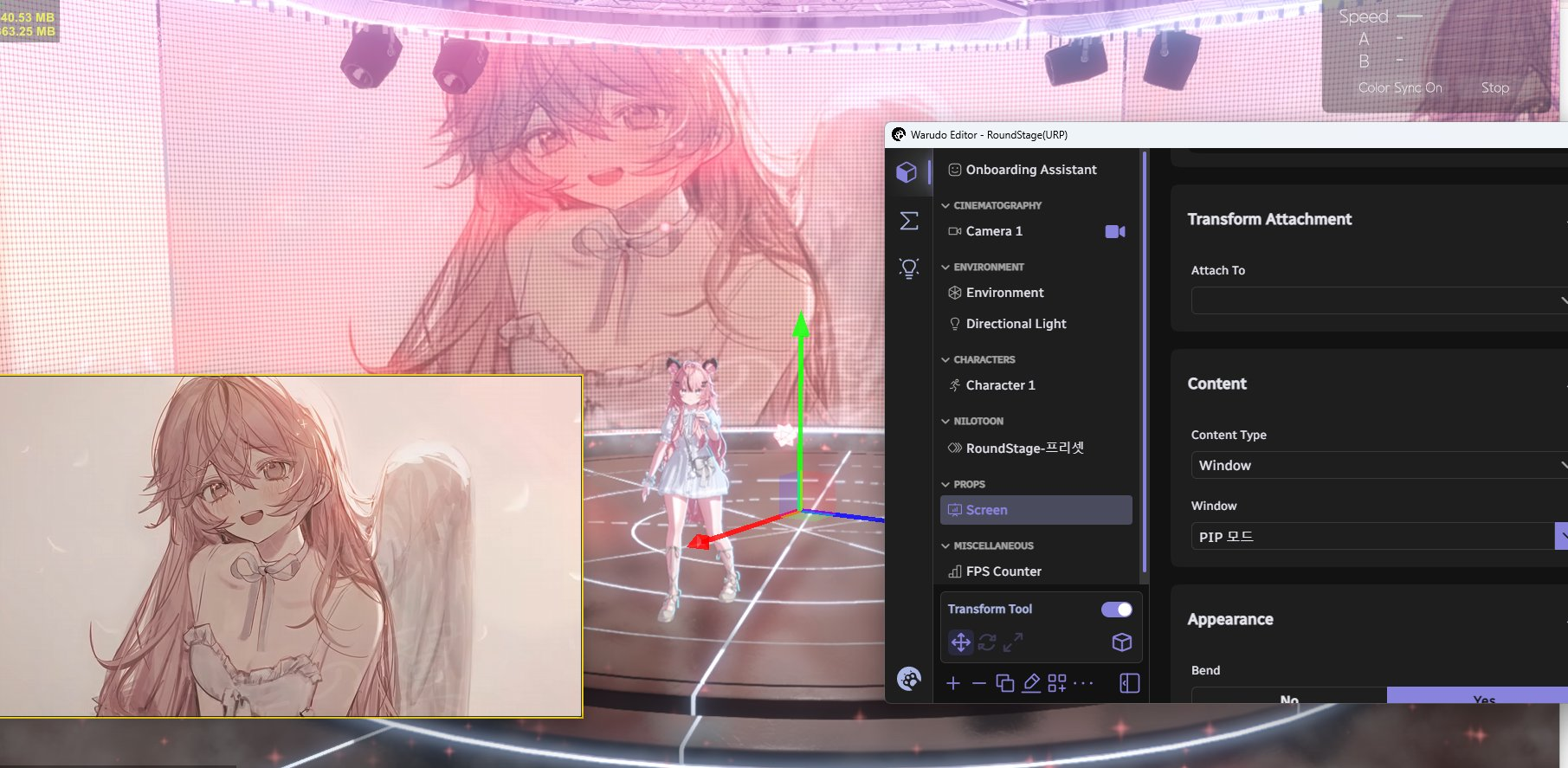
3. Using Discover Tab Plugins
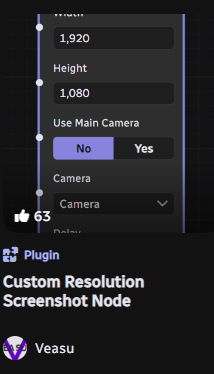
Subscribe to the capture plugin shown below in the Discover tab. Add it to your blueprint to capture clean screenshots/video in your desired resolution without FPS counters or gizmos.
© Studio Raming. All Rights Reserved.




