
Description
Loft Studio
The Perfect Rooftop Concept for Your Primary Stream Background
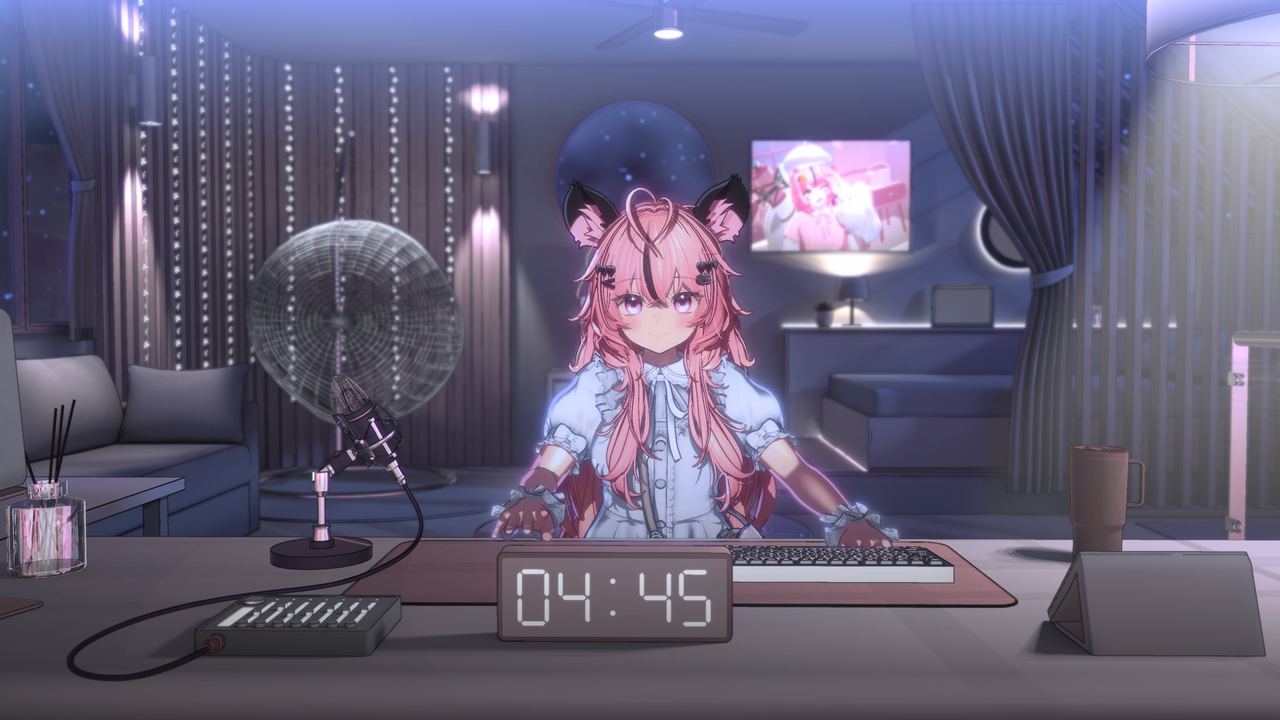
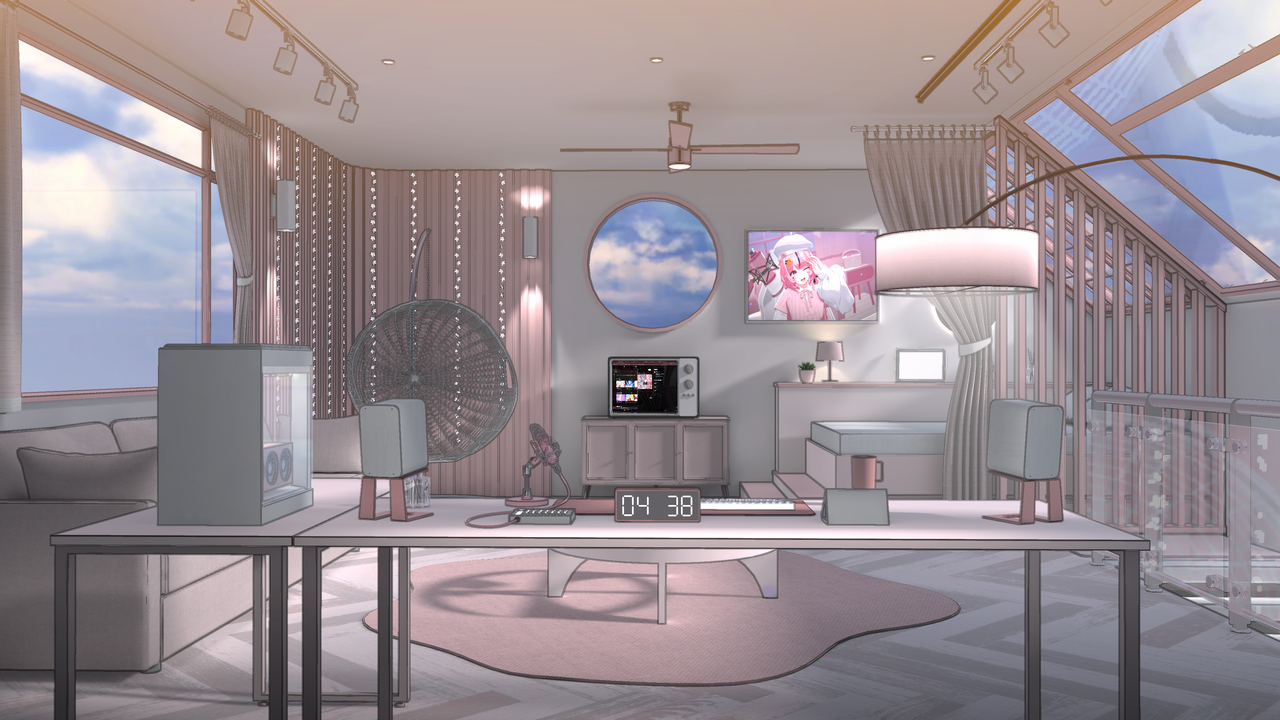
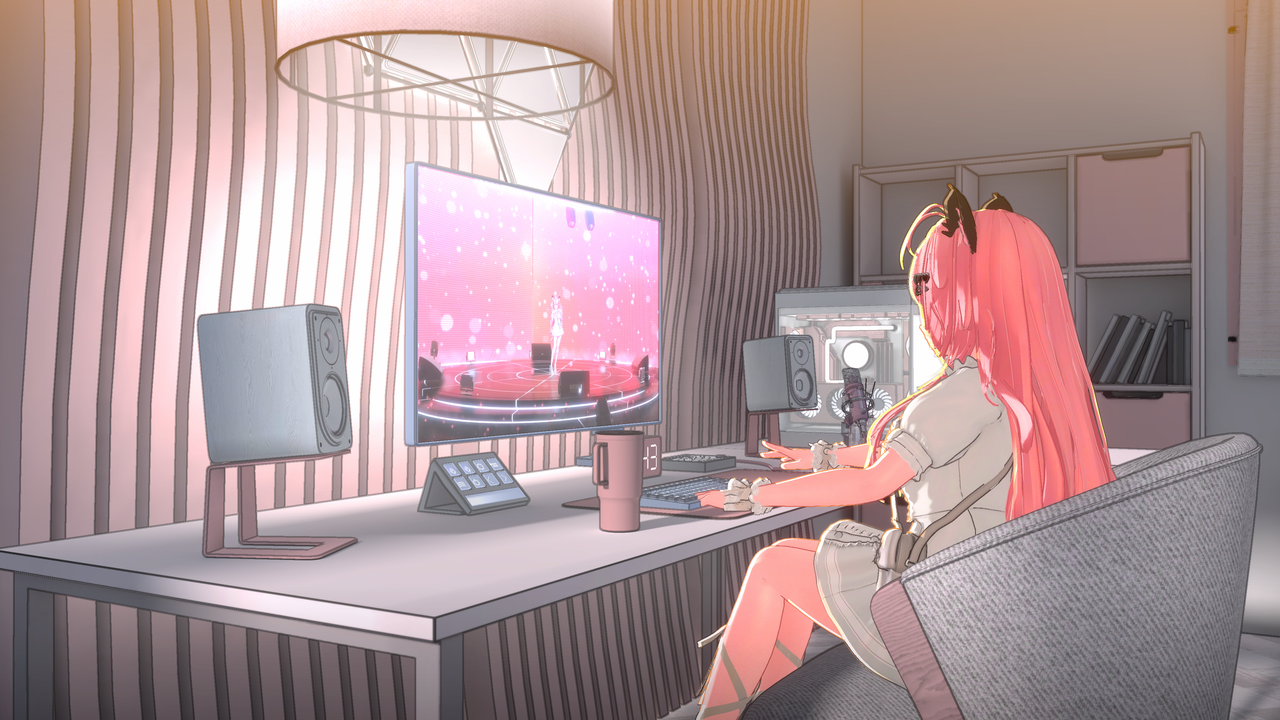
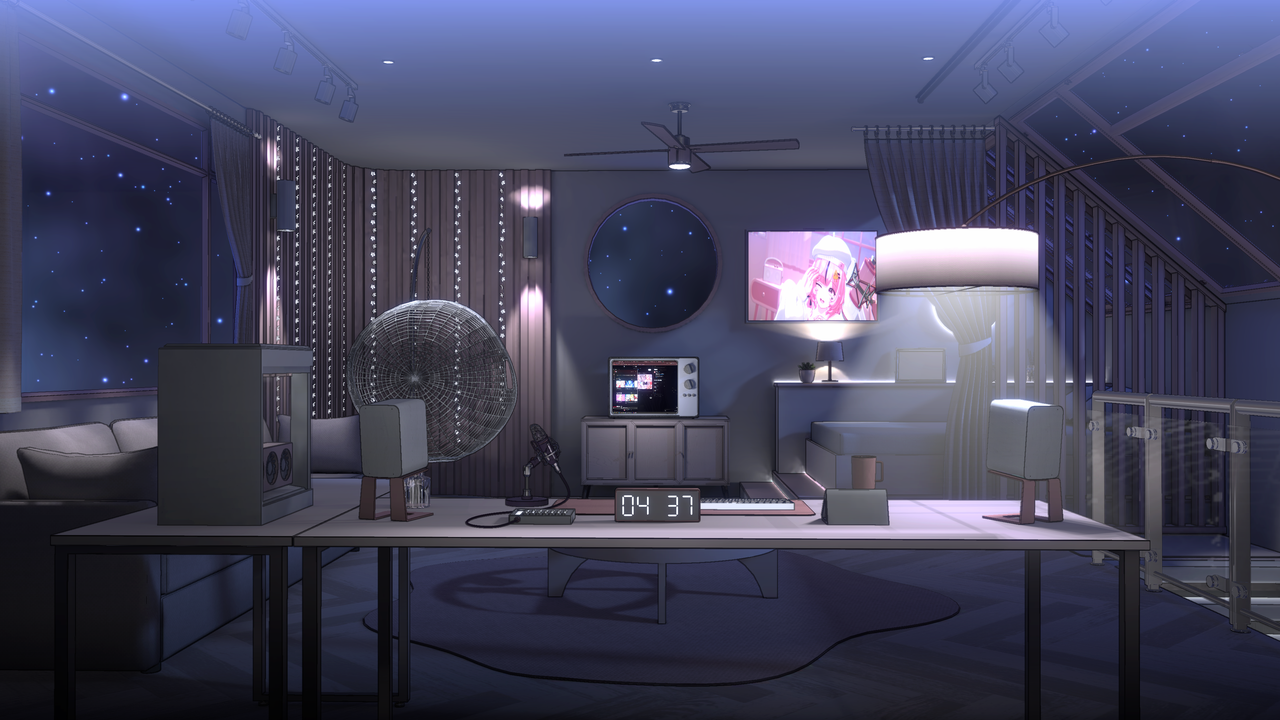
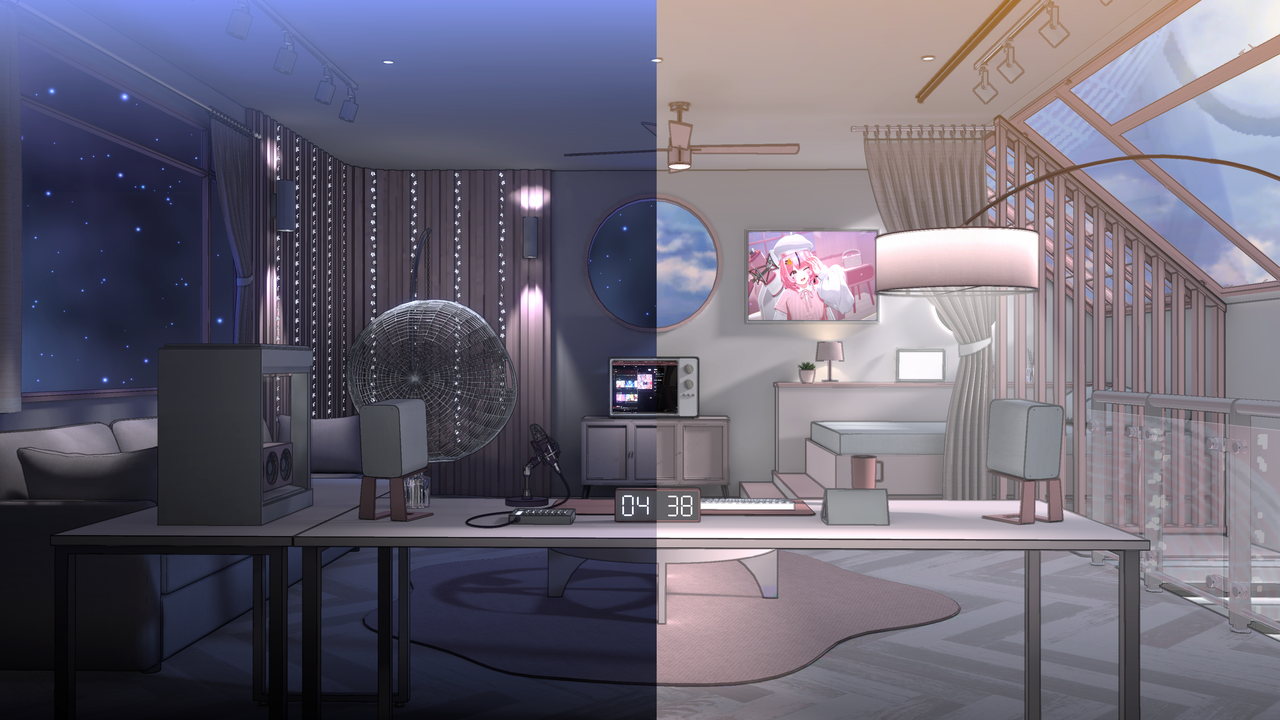
Loft Studio is a rooftop-themed background designed for versatile use as a standard streaming set.
Using the dedicated UI, you can adjust lighting colors, monitor layouts, and furniture in real-time to create your unique atmosphere.
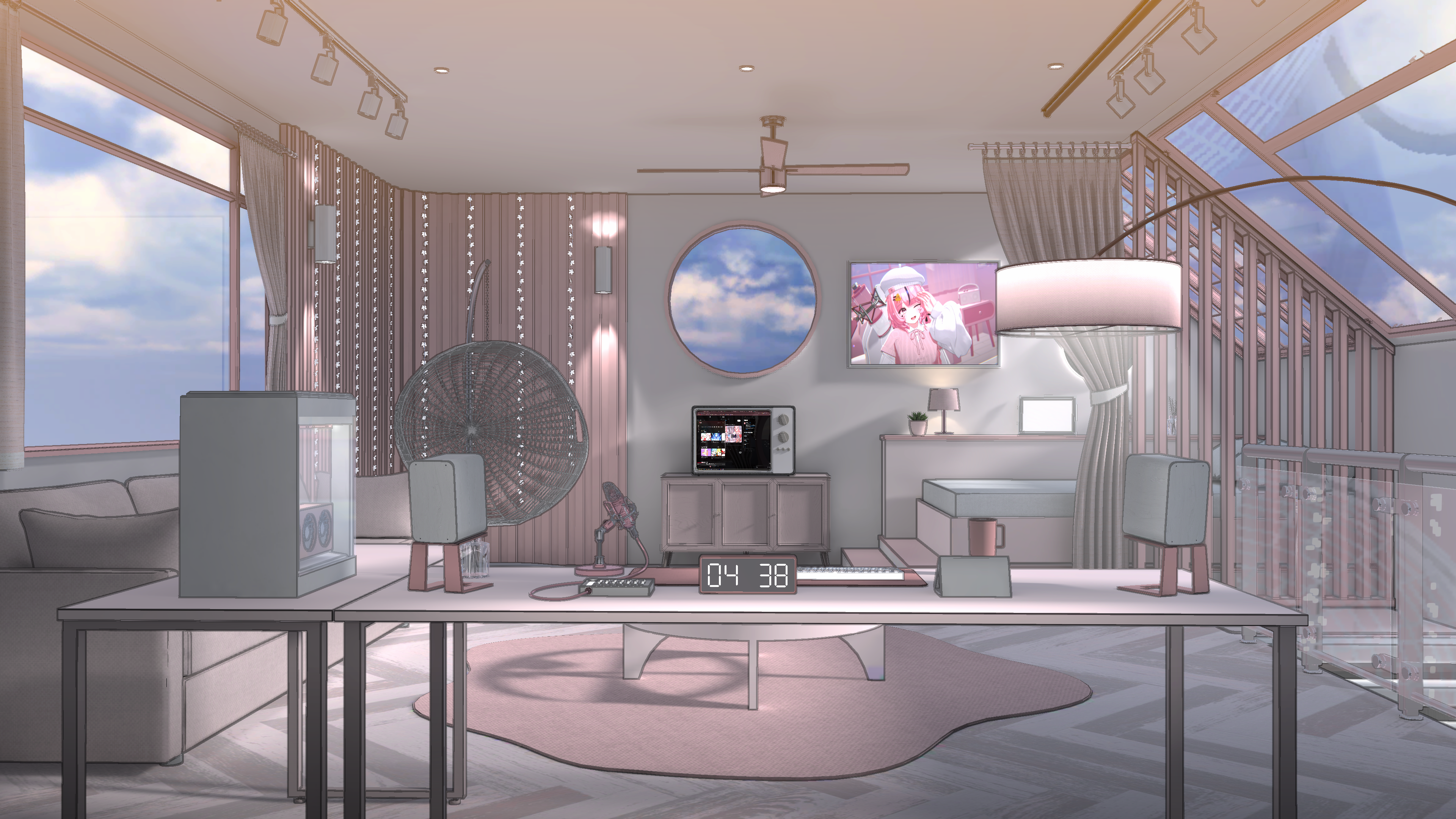
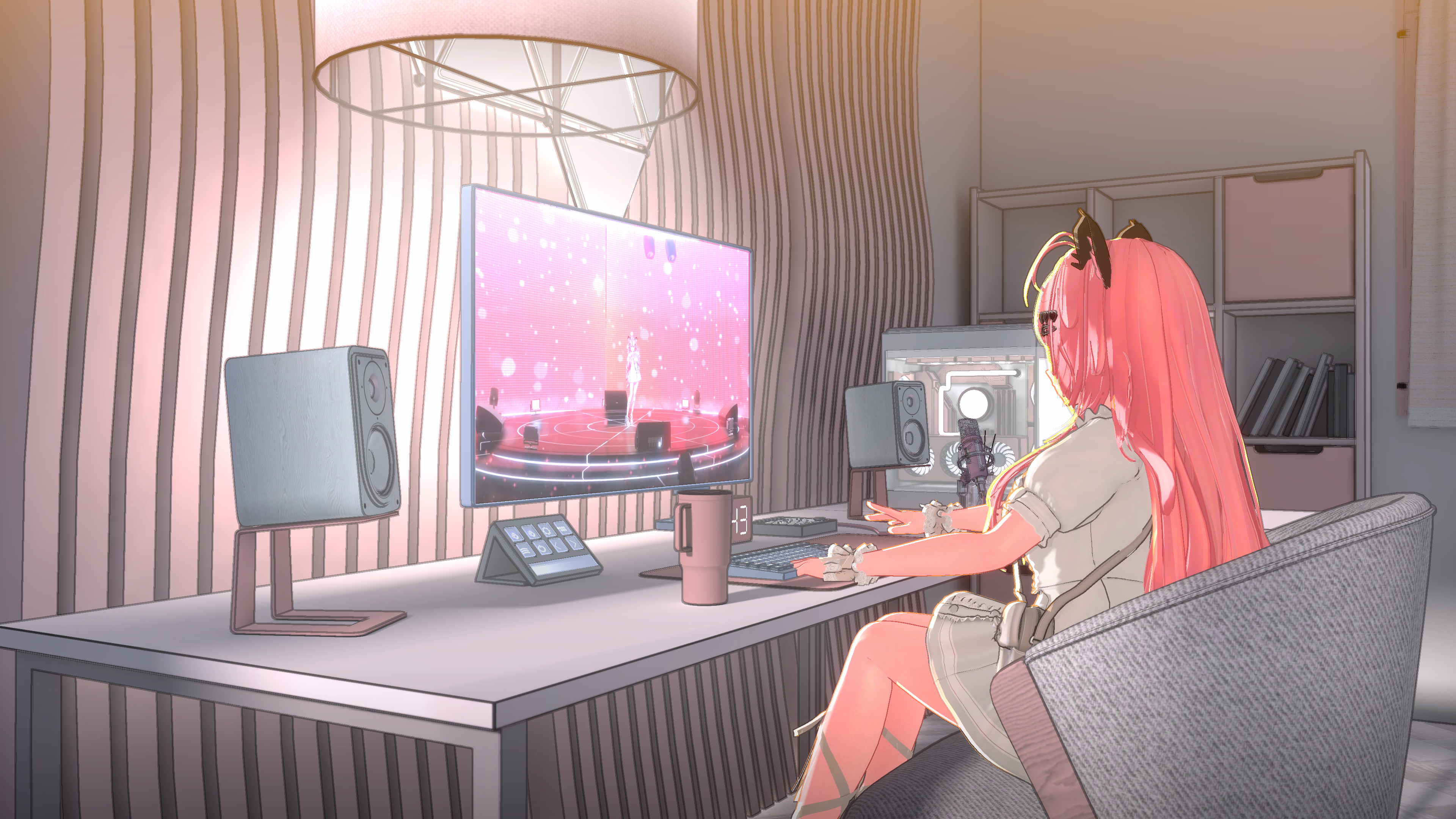
This product includes both Day and Night version files.
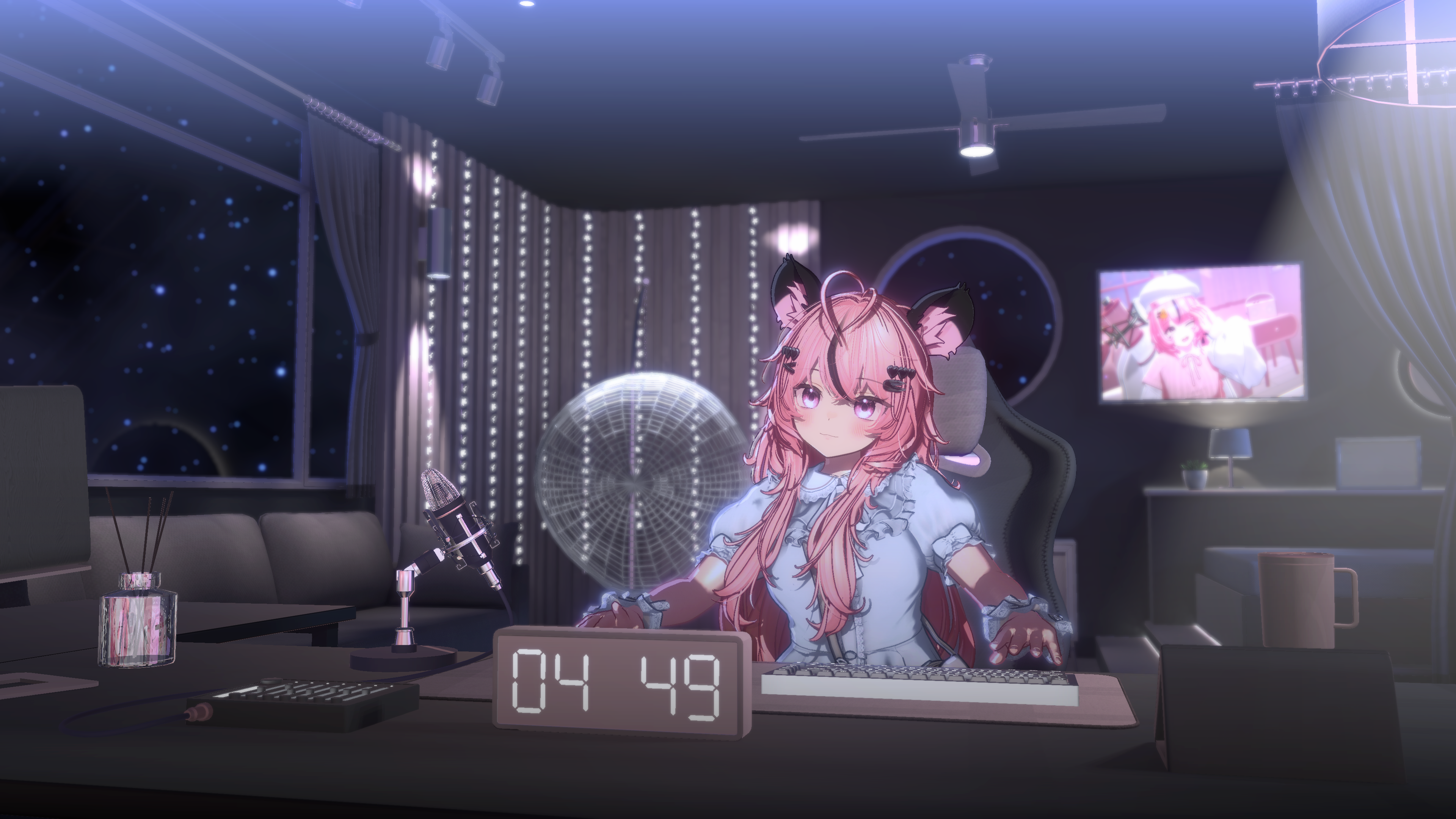
< Warudo Screenshots >
☀ Day Version
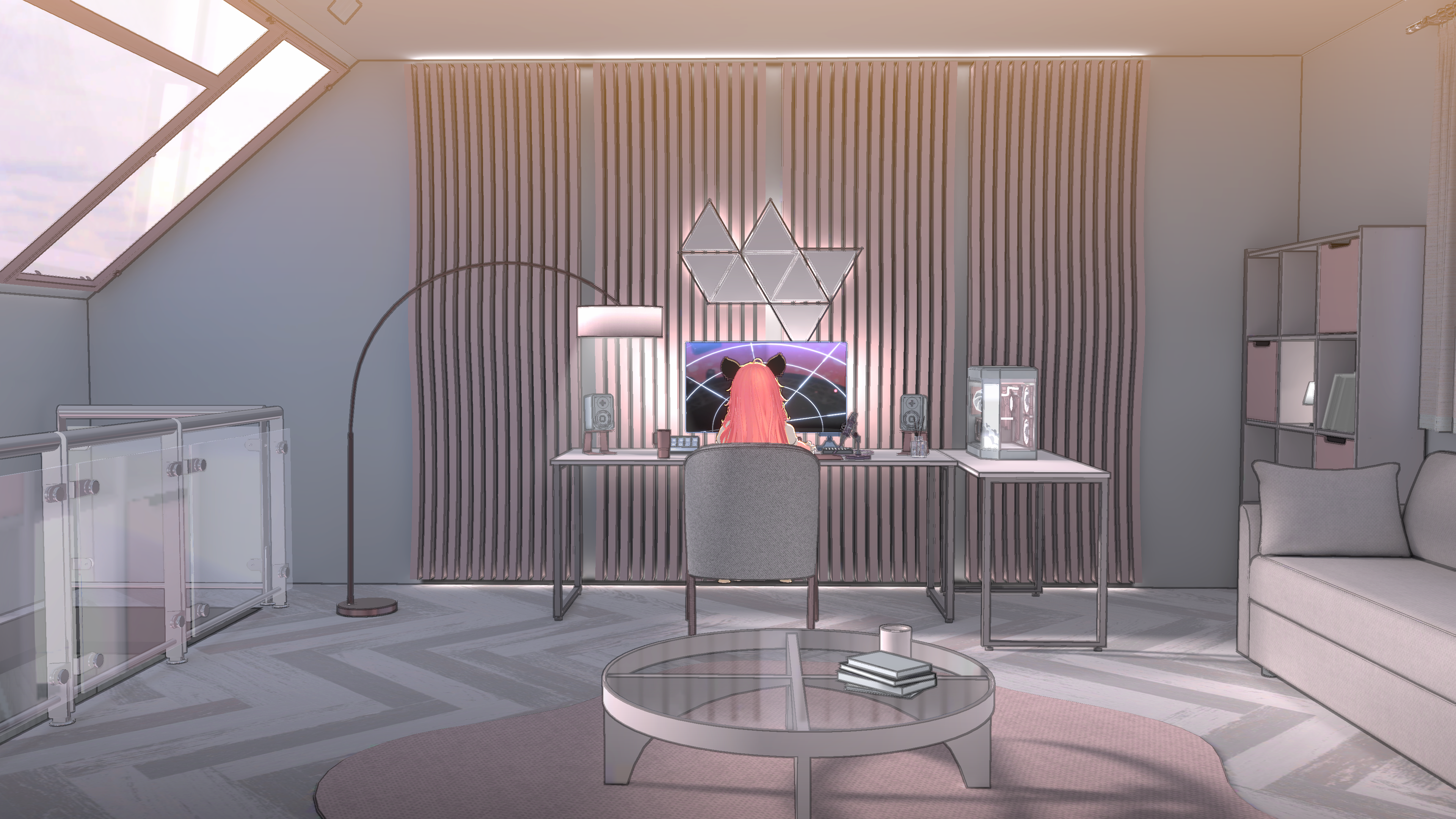
🌙 Night Version
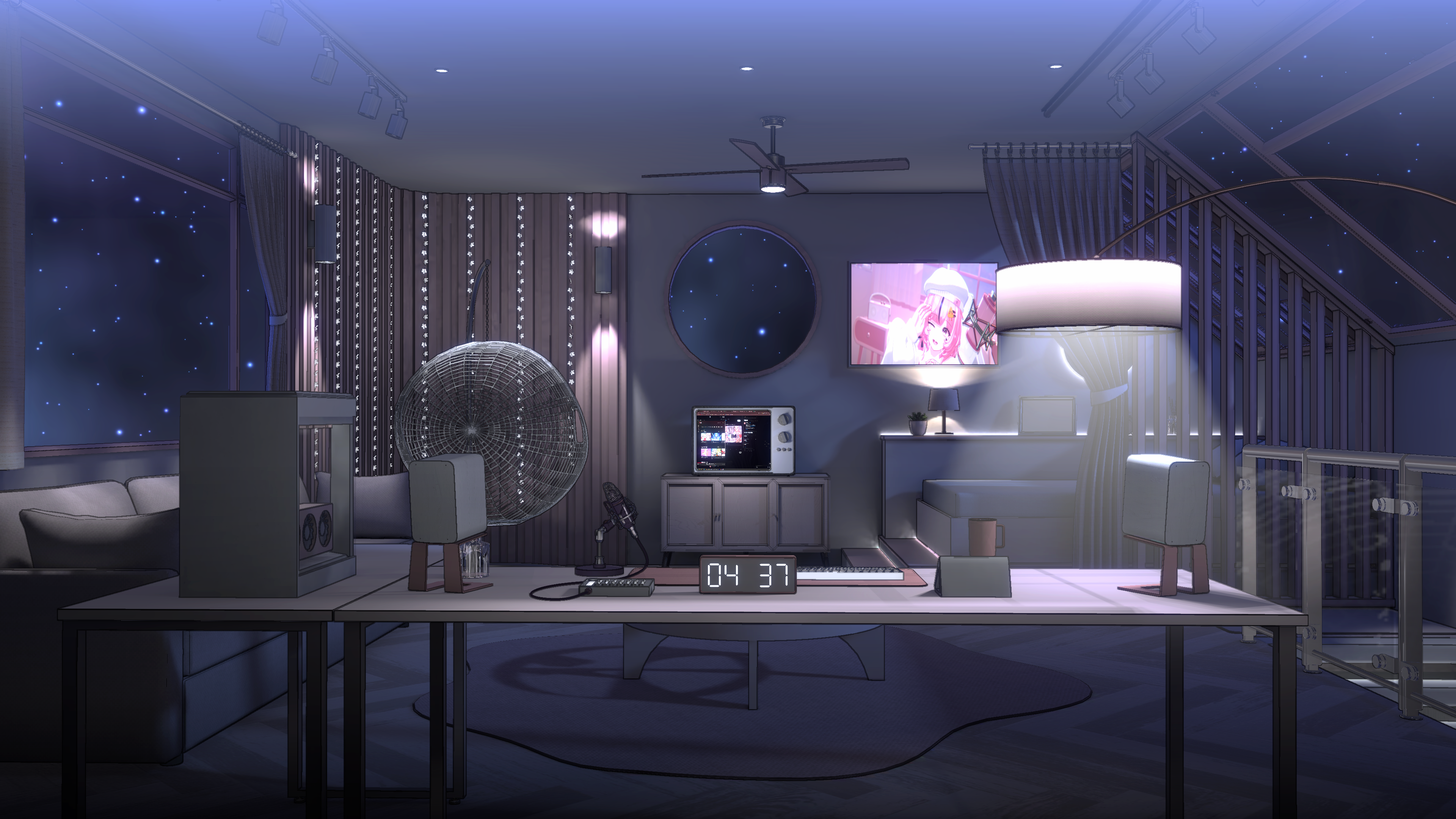
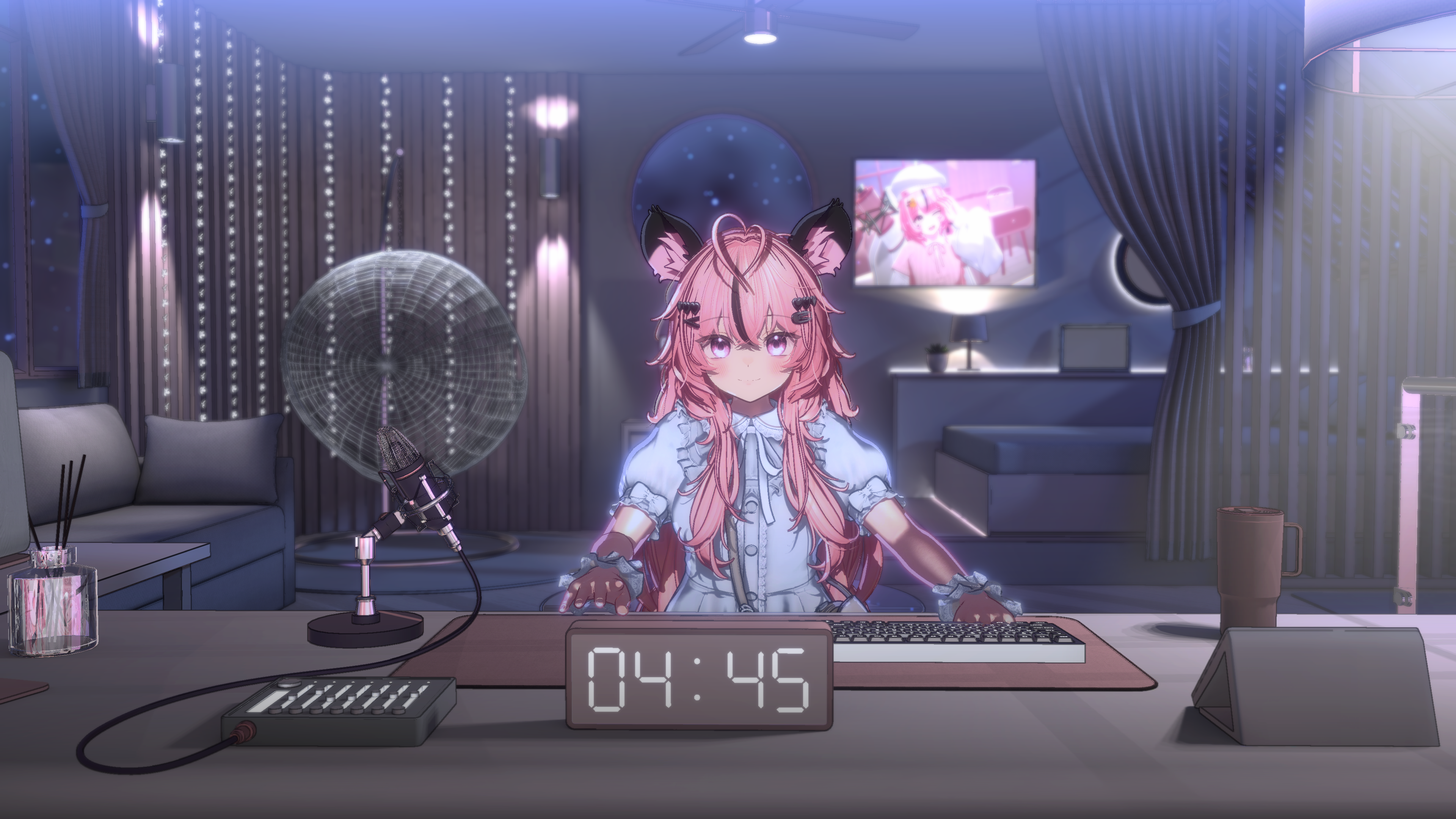
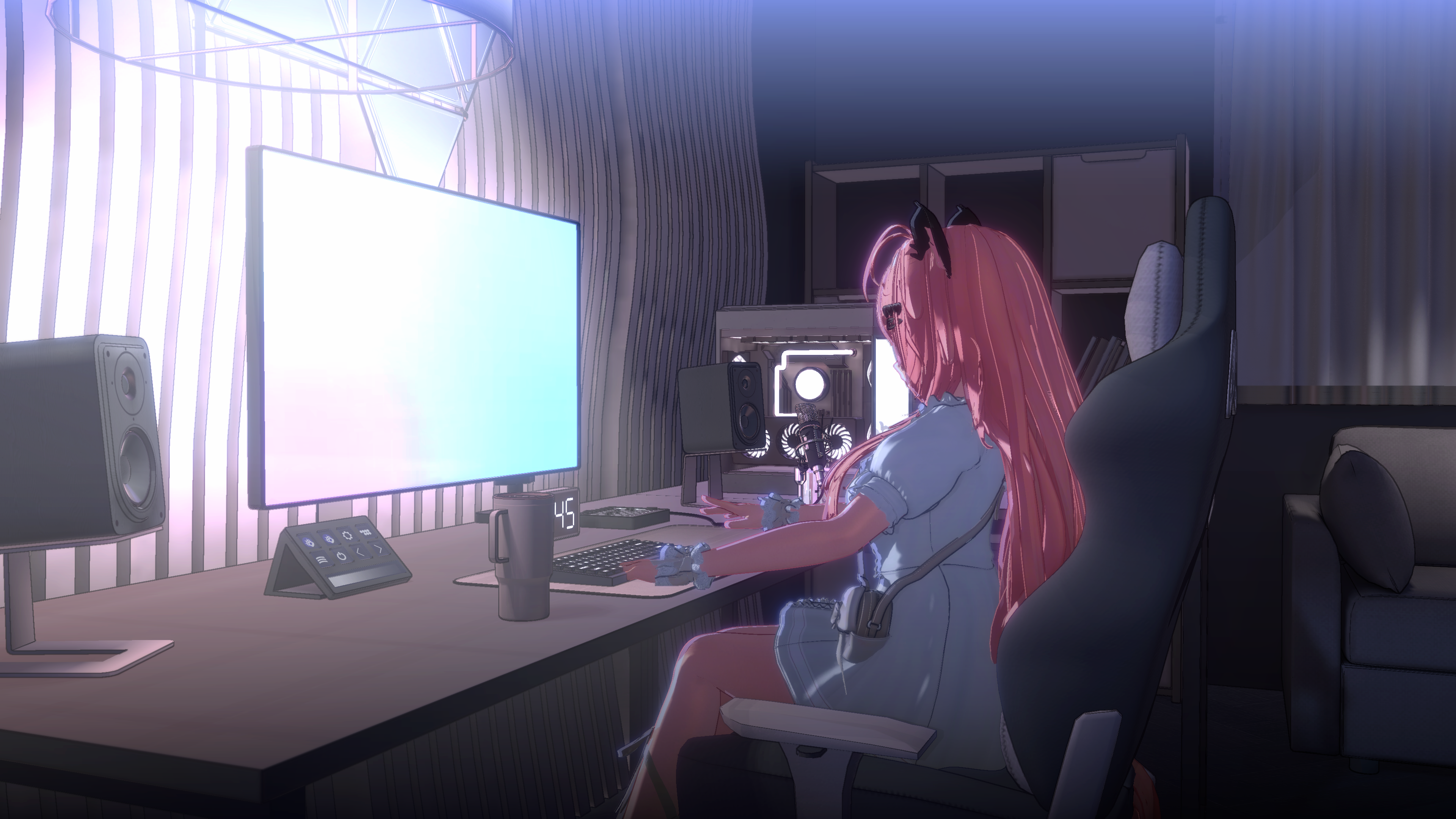
💡 Key Features
Dedicated UI Panel Control
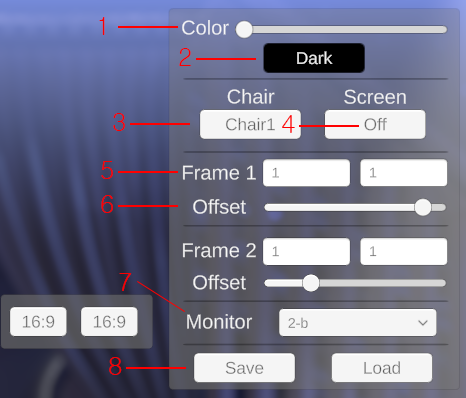 Color Sliders: Freely adjust lighting to any color.
- Light/Dark Mode: Toggle the overall room mood.
- Chair Settings: Change chair types or hide them entirely.
- Projector Screen: Control the Open/Close animation.
- Photo Frame Settings: Adjust photo resolution and position.
- Monitor Options: Customize quantity, layout, and aspect ratio (16:9/Wide).
- Data Management: Supports saving and loading your options.
※ The UI will not appear on the broadcast screen when streaming via Warudo Virtual Camera output.
Screen Broadcast Settings
You can project any screen onto various devices within the background.
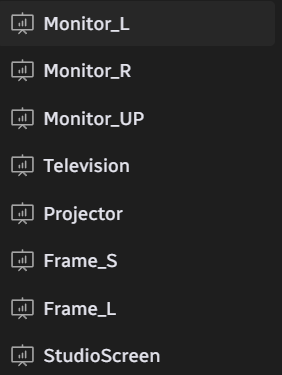
Monitor_L / R / UP
Select screen content for the main desk monitors.
Television
Select screen content for the TV.
Projector
Select screen content for the projector screen.
Frame_S / L
Select photos to display in the frames.
Other Interactions
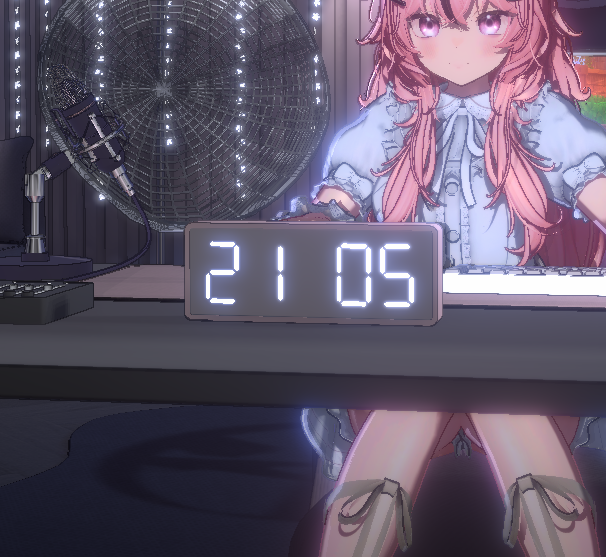
- Real-time Clock: Includes a digital clock that automatically syncs with your local time.
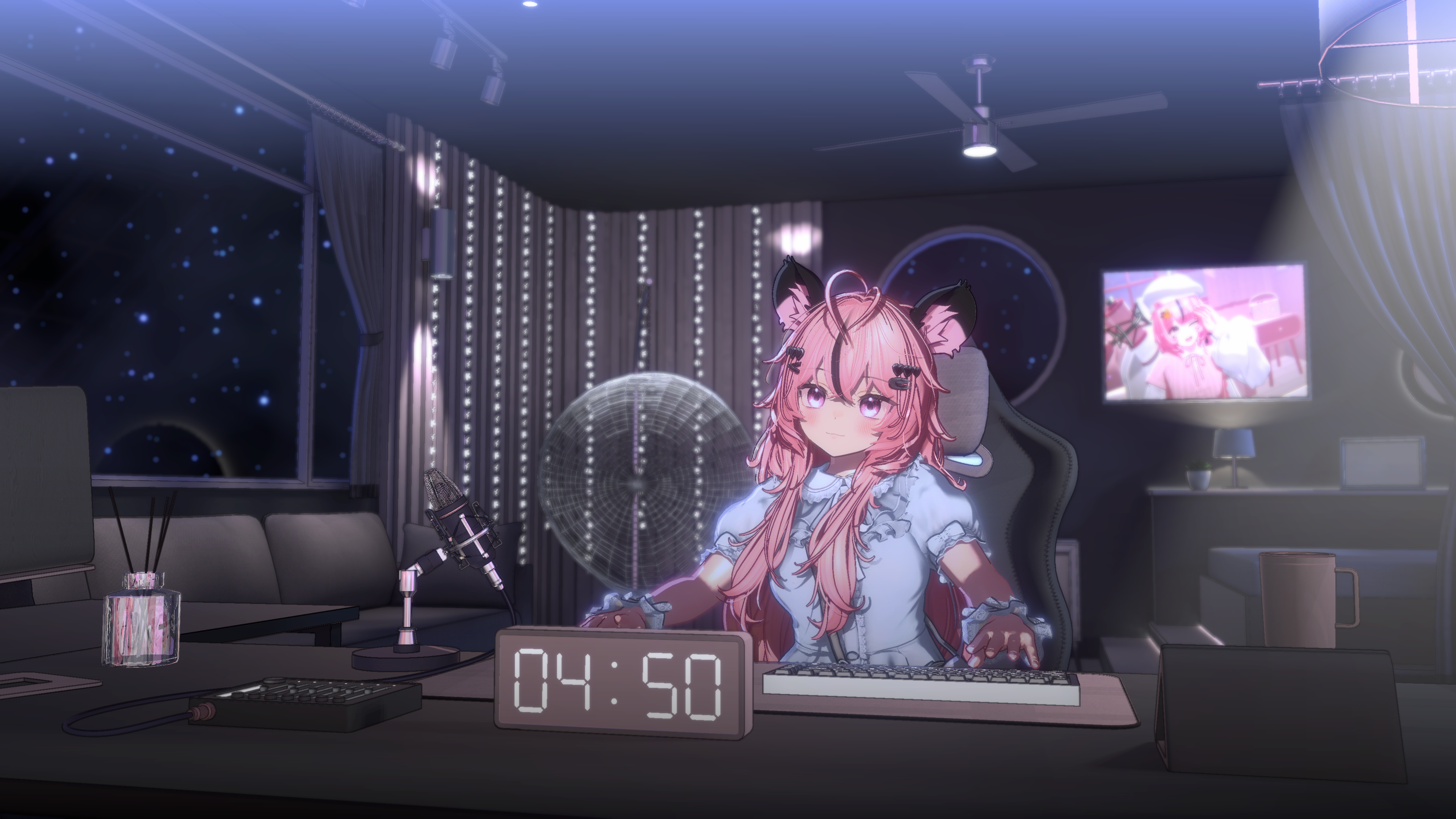
- Outline Toggle: Press Shift + F2 to toggle outlines for background objects on or off.
⚠ Important Notices
- If the UI is not responding, click the LoftStudioBP window within the editor once before attempting to operate it.
- Unity projects and source package files are not provided.
- This background was optimized for an RTX 3060ti environment.
Warudo Background Setup Guide
Quick and easy environment setup using the Studio Laming Plugin
1
Warudo Background File Setup
By using the Studio Laming Plugin, you can enable automatic downloading and setup of background files.
1. Open Data Folder
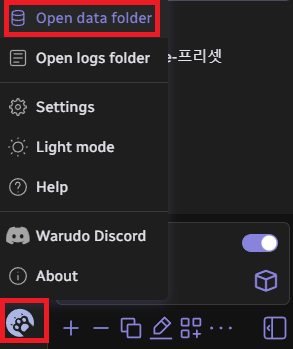
 Click the icon in the bottom-left corner of the Warudo editor and select 'Open data folder'. Then, copy the path of the StreamingAssets folder.
2. Run Auto-Merge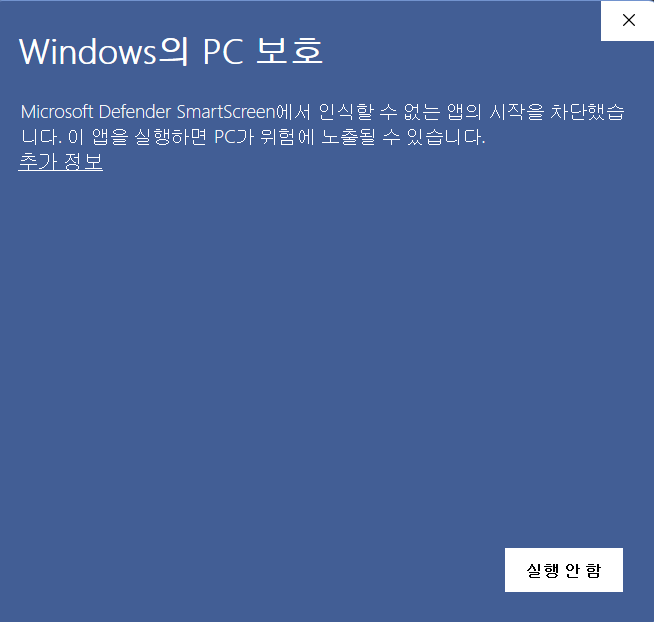 Run the executable file (.EXE) included in your download. If a security window appears, click "More Info" and then select "Run anyway."
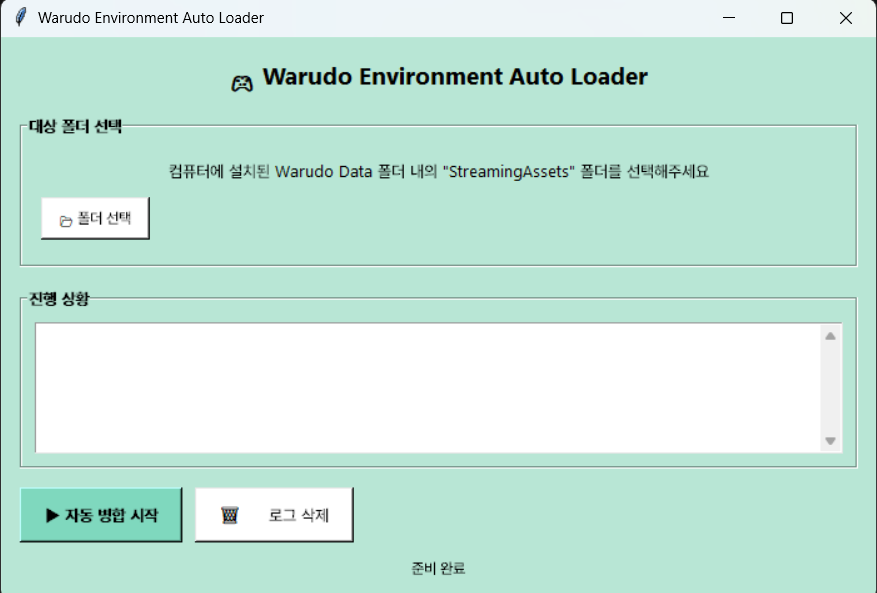 Click "Select Folder" (폴더 선택) and paste the path you copied. Then, click "Start Auto-Merge" (자동병합 시작). The files will be placed in their correct locations automatically!
2
Warudo Environment Setup (Plugin)
1. Subscribe to Plugin
Subscribe on Steam Workshop
Please subscribe to the Studio Laming Plugin on the Steam Workshop.
2. Check for Icon
Once subscribed, the Studio Laming Plugin icon will appear inside Warudo.
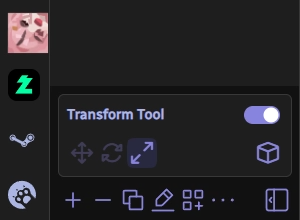
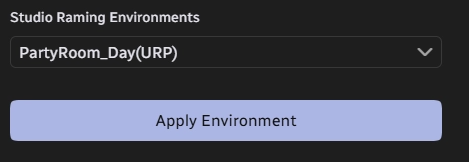
3. Apply Environment
Select your desired background and click Apply Environment to complete the setup.
📝 Terms of Use
● Individual (Independents / MCNs without technical support)
- Permitted for broadcasting, commercial use, merch production, and concerts.
- Redistribution and resale are strictly prohibited.
- For commissions or collaborative work, all parties involved must own the product.
● Corporate (Agencies / MCNs with technical support)
- Please contact us via the inquiry function to discuss licensing.
All intellectual property rights for the assets and scripts belong to Studio Raming.
Update Note [ver 1.0.1]
Optimization fix: UI now scales correctly to all screen resolutions.
© Studio Raming. All Rights Reserved.




