


Description
【Warudo PRO】 Anniversary Party Room
The Perfect Party Background for Anniversaries, Debuts, and Birthdays
This is a party room background designed for various special occasions such as anniversaries, debut days, and birthdays.
You can freely select theme colors using the UI sliders, and it includes customizable balloon props to complete your party atmosphere.
Available in Day / Night / Day+Night package options.
< Warudo Pro Screenshots >


💡 Key Features
Theme Color & Outline Control
 UI Sliders: Use the sliders in the top-right to change the theme color in real-time.
- Nilo Outline Toggle: Switch background outlines On/Off to adjust the visual style.
Customizable Balloon Props


 Text Input: Enter your custom message on the balloons (Supports English only).
- Color Customization: Supports Hue, Saturation, and Value adjustment buttons.
⚠ Pre-Purchase Notices
- This background is exclusive to the WARUDO PRO version. It will not work with the Regular version.
- Due to the nature of digital goods, refunds are not possible after download.
- This background was developed and optimized for an RTX 3060ti environment.
Warudo Background Setup Guide
Quick and easy environment setup using the Studio Laming Plugin
1
Warudo Background File Setup
By using the Studio Laming Plugin, you can enable automatic downloading and setup of background files.
1. Open Data Folder
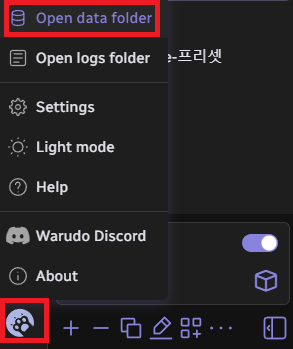
 Click the icon in the bottom-left corner of the Warudo editor and select 'Open data folder'. Then, copy the path of the StreamingAssets folder.
2. Run Auto-Merge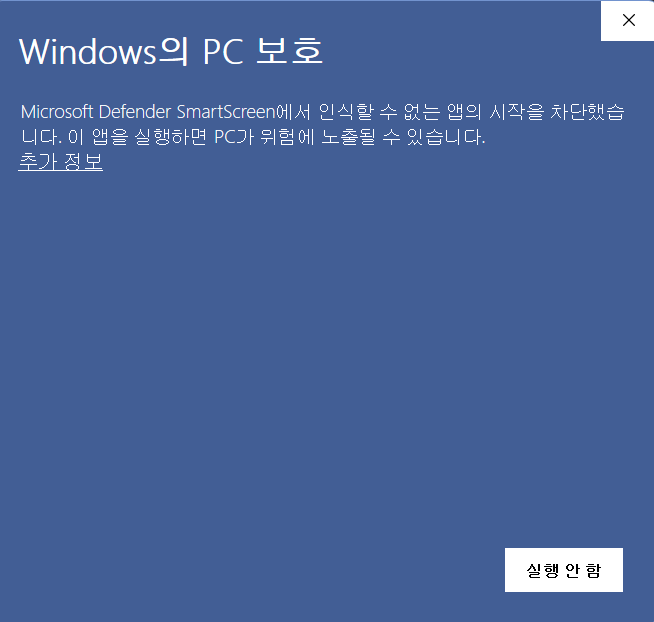 Run the executable file (.EXE) included in your download. If a security window appears, click "More Info" and then select "Run anyway."
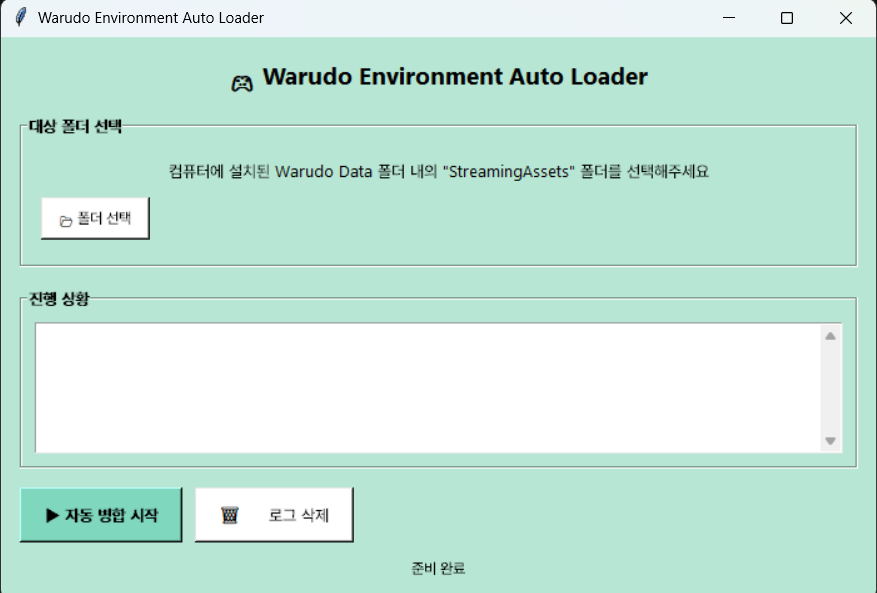 Click "Select Folder" (폴더 선택) and paste the path you copied. Then, click "Start Auto-Merge" (자동병합 시작). The files will be placed in their correct locations automatically!
2
Warudo Environment Setup (Plugin)
1. Subscribe to Plugin
Subscribe on Steam Workshop
Please subscribe to the Studio Laming Plugin on the Steam Workshop.
2. Check for Icon
Once subscribed, the Studio Laming Plugin icon will appear inside Warudo.
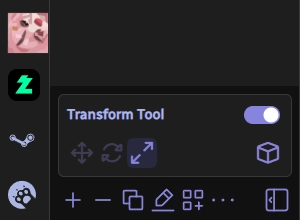
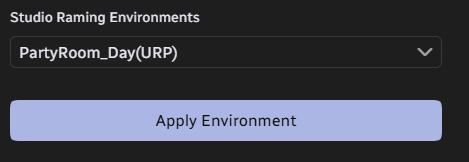
3. Apply Environment
Select your desired background and click Apply Environment to complete the setup.
Streaming Tips (TIP)
1. Clean Broadcast Screen (Hide UI/Gizmos)
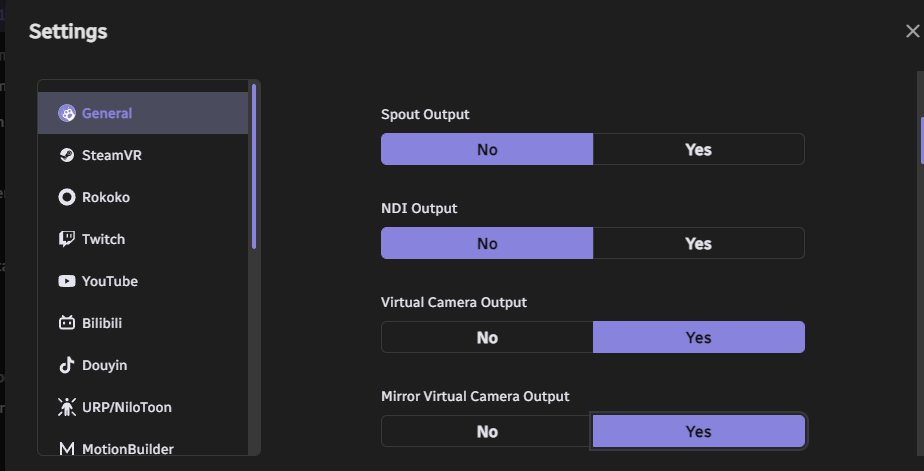
Enable Virtual Camera Output in Warudo settings and add it as a 'Video Capture Device' in OBS to ensure the editor UI is not visible on your stream.
2. High-Resolution Captures
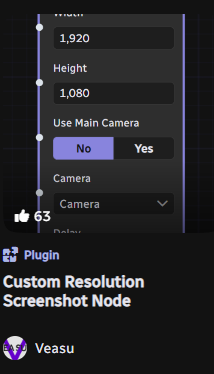
Use the capture plugin in the Discover tab to take clean screenshots at your desired resolution without gizmos or FPS counters.
© Studio Raming. All Rights Reserved.




