Description
VDeck — Warudo Plugin
"No Stream Deck needed — just open your browser."
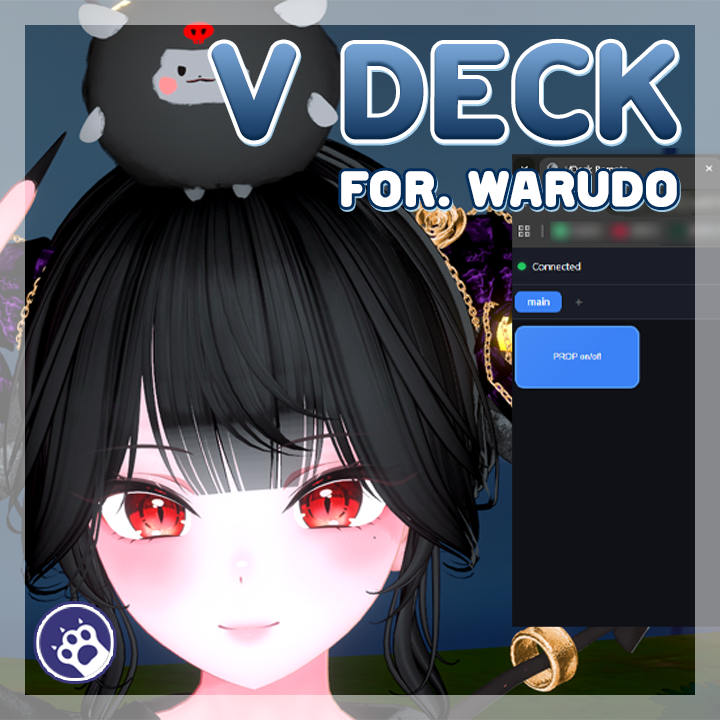
VDeck is a browser-based remote control plugin for Warudo.
Once installed, the plugin creates a WebSocket server inside Warudo. Open the included HTML remote page in any browser and you can control Warudo remotely.
It works on smartphones, tablets, other PCs — any device with a browser, no app installation required.
Create buttons freely and connect each one to Warudo blueprint nodes to build your own custom controller.
───────────────────────────────────
◆ Key Features
● 3 Button Types
Trigger: A one-shot button that fires once when pressed.
Toggle: A button that switches between ON and OFF states.
Message: A button that sends a text input to Warudo.
● Warudo Blueprint Node Integration
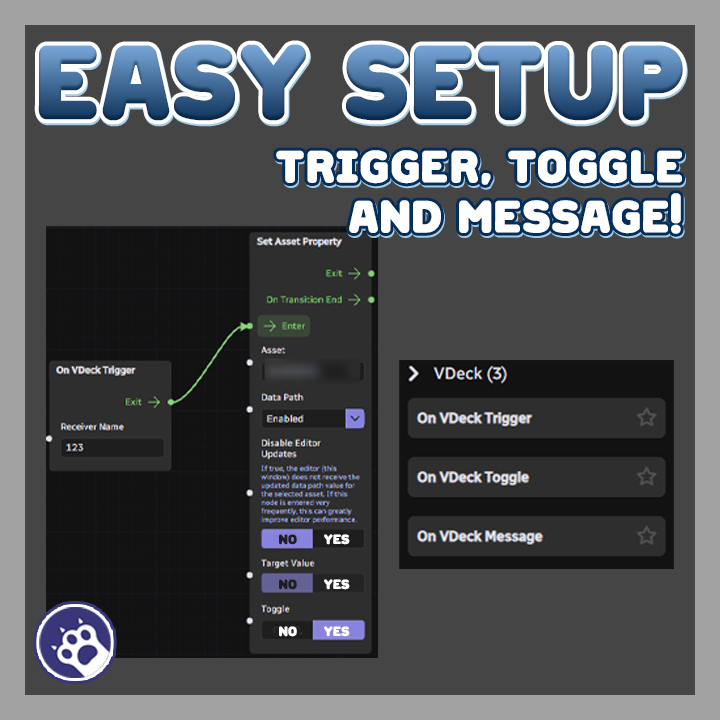
Place OnVDeckTrigger, OnVDeckToggle, or OnVDeckMessage nodes in your blueprint,
and match the Receiver Name to your remote button — they connect automatically.
● Browser-Based Remote
Runs from a single HTML file with no app installation required.
Works on smartphones, tablets, PCs — any device with a browser.
● Remote Access Support
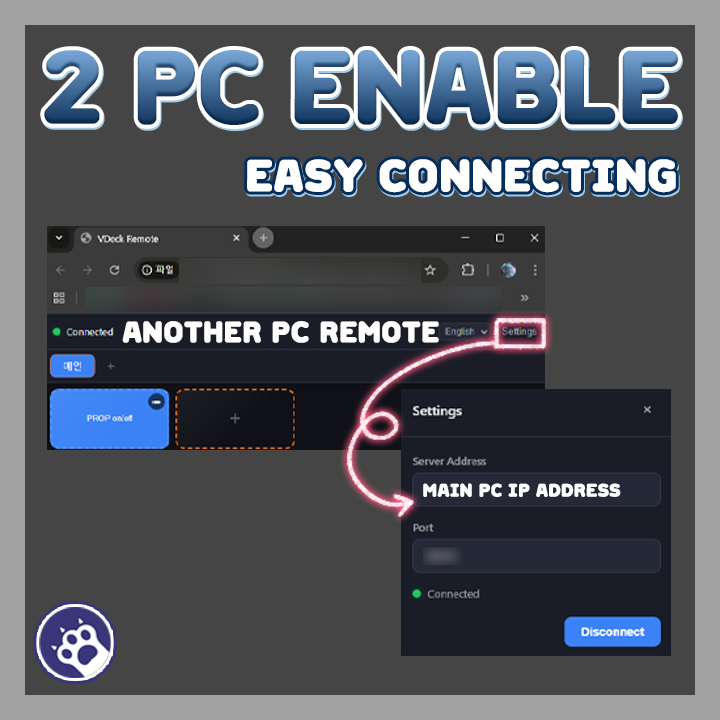
Connect from other devices on the same network.
Enable remote access in the plugin settings, then connect using the PC's IP address.
● Multi-Page & Custom Grid Layout
Create multiple pages to organize your buttons, and adjust the grid layout freely.
● Drag-and-Drop Editing
In edit mode, drag buttons to rearrange them into your preferred layout.
● Button Customization
Customize label, icon (emoji), color, and size for each button.
● Auto-Reconnect
Automatically attempts to reconnect when the WebSocket connection is lost.
● Persistent Configuration
Button layout and settings are saved on the server and persist across sessions.
localStorage backup provides offline layout preview.
● Multi-Language UI
Supports Korean, English, and Japanese.
● Dark Theme & Responsive Design
Touch-friendly dark theme UI that works great on both mobile and desktop.
───────────────────────────────────
◆ Usage Examples
● Expression Trigger
Create a trigger button named "Smile",
set the OnVDeckTrigger node's Receiver Name to "Smile" in your blueprint.
Press the button and the connected expression change flow executes.
● Background ON/OFF Toggle
Create a toggle button named "Background Switch",
connect it to an OnVDeckToggle node to run different flows for ON and OFF.
Example: ON → show Background A, OFF → show Background B
● Chat Message Send
Create a message button named "Chat",
connect it to an OnVDeckMessage node to receive typed text in your blueprint.
Example: Display text on screen, or read it with TTS
● Camera Preset Switching
Create several trigger buttons ("Front", "Side", "Close-up"),
connect each to an OnVDeckTrigger node that switches camera presets.
───────────────────────────────────
◆ Installation
1. Prepare the downloaded .warudo file.
2. Place the file in the Plugins folder inside your Warudo data folder.
(Default path: Warudo installation folder/Warudo_Data/StreamingAssets/Plugins)
3. Restart Warudo.
4. When VDeck appears in the plugin list, installation is complete.
───────────────────────────────────
◆ Setup
【Warudo Plugin Setup】
1. Launch Warudo and confirm VDeck appears in the plugin list.
2. Set the WebSocket server port in the Port field. (Default: 19070)
3. Enable Allow Remote Access to allow connections from other devices on the same network.
4. In your blueprint, add nodes from the VDeck category:
- On VDeck Trigger: Receives trigger button events
- On VDeck Toggle: Receives toggle button events (If Yes / If No branches)
- On VDeck Message: Receives message button events (Message data output)
5. Set each node's Receiver Name to match the corresponding remote button.
【HTML Remote Setup】
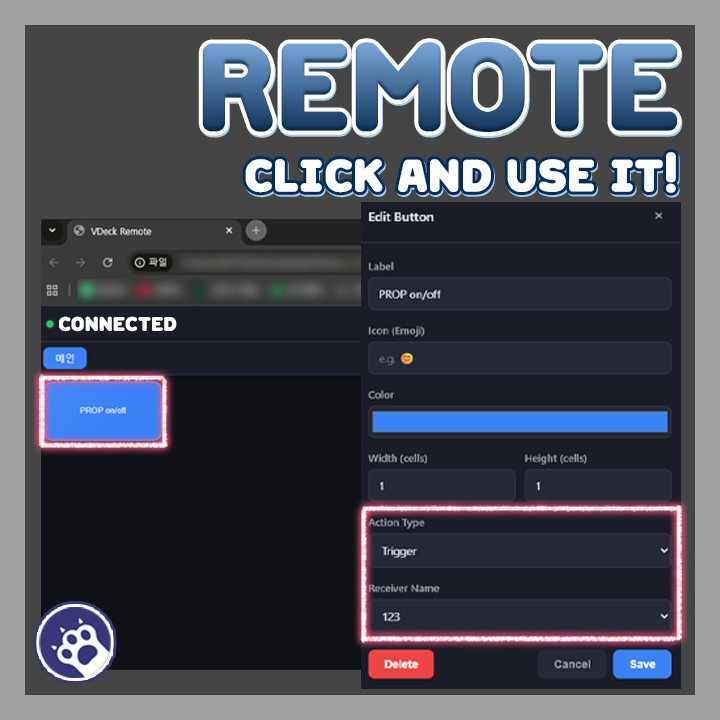
1. Open VDeck-Remote/index.html in a browser.
(Or host it on a web server and access it from there.)
2. Open settings and enter the server address and port.
- Same PC: localhost:19070 (default)
- Other device: IP address of the PC running Warudo:19070
3. Press the connect button to connect to Warudo.
4. Enable edit mode to add and arrange buttons.
5. Set each button's Receiver Name to match the Warudo blueprint nodes.
───────────────────────────────────
◆ License
● This plugin is licensed for one person per purchase.
● For commissions, both the client and the creator must purchase a license.
● Sharing, redistribution, and secondary distribution are prohibited.
● For corporate or business use, please contact us separately.