Description
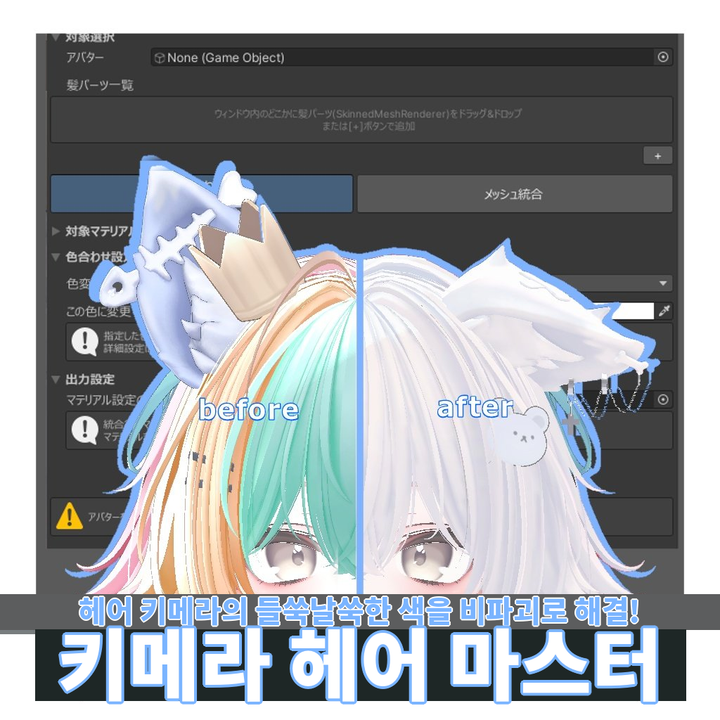
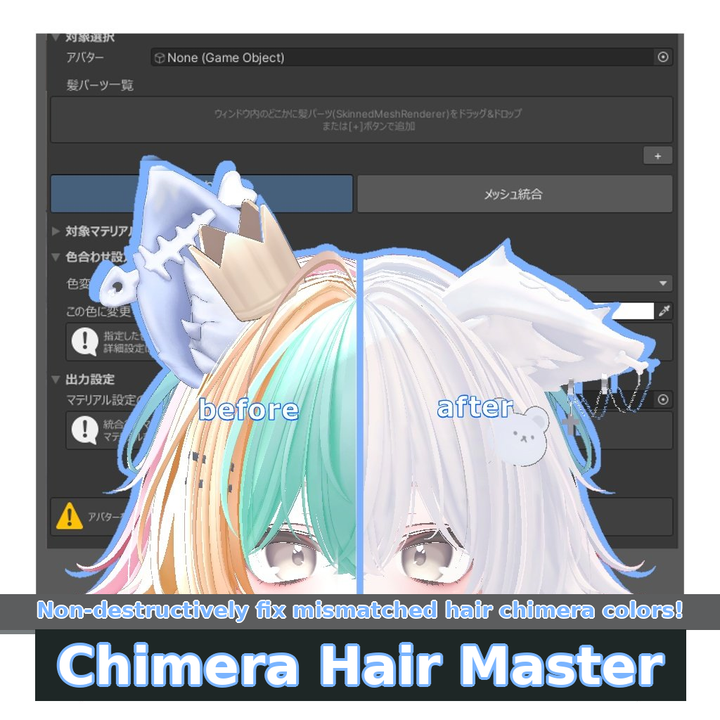
"Chimera Hair Master" — The all-in-one tool that unifies, recolors, and even reshapes your hair chimera!
"These hair colors just don't match..." "Tweaking shadow settings to match is such a pain..." "The hair pieces are slightly misaligned with each other..."
🦈 This tool might just solve all those problems!? 🦈
Two Unity Editor extension tools that help with hair chimera creation and mask painting for VRChat. Instantly fix the mismatched-color problem when combining multiple hair assets. It also integrates meshes and materials to improve performance. On top of that, mask texture editing now stays inside Unity from start to finish — no more bouncing back and forth with external paint software! Let's make those tedious hair chimera tasks just a little bit easier!!!
【About product variants】
- Standalone Edition: Chimera Hair Master only
- Complete Edition: Chimera Hair Master + Mask Creation Helper Tool (VCC-installable)
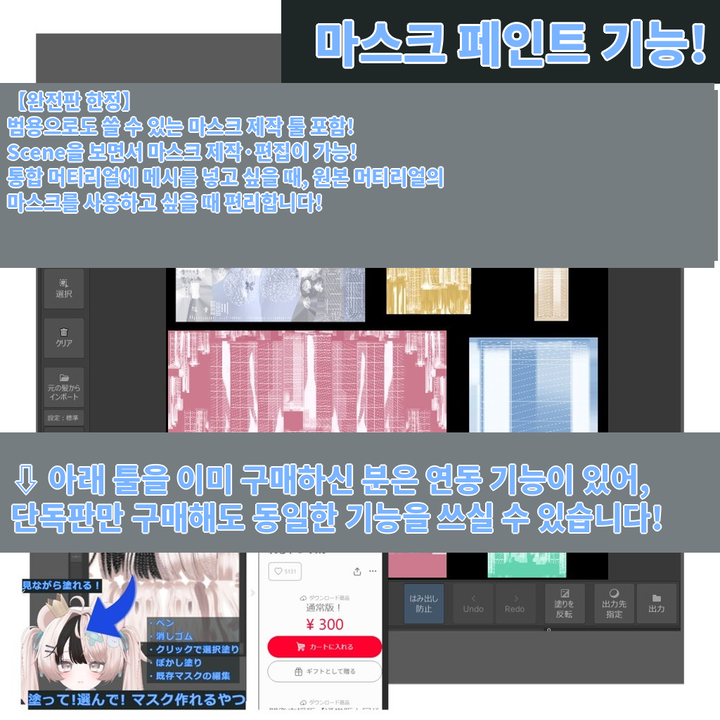
※ If you've already purchased "Paint! Pick! Mask-Maker Thing" (塗って!選んで!マスク作れるやつ) (https://neko-to-same.booth.pm/items/7951475) from our shop, the Standalone Edition gives you access to all features. If you'd prefer to use it via VCC, please go with the Complete Edition.
〇 Chimera Hair Master
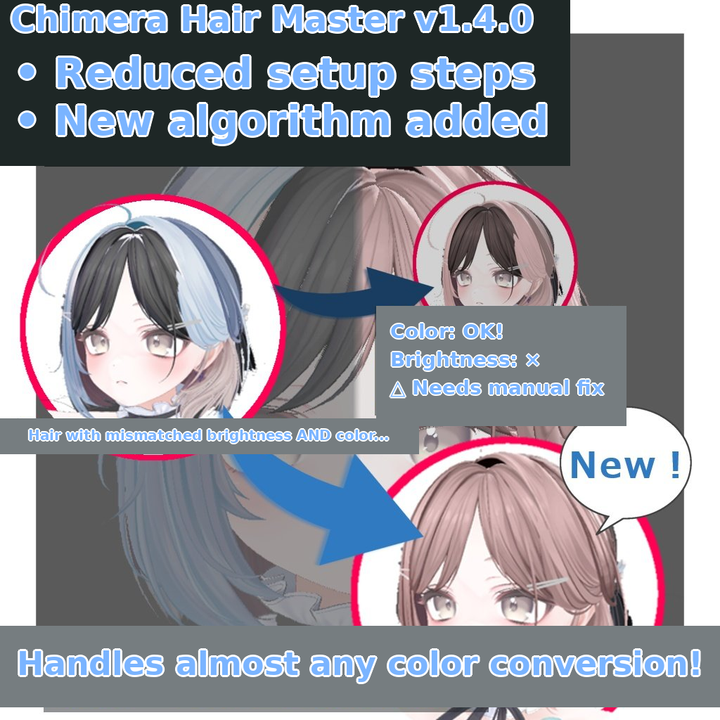
Solves the "color inconsistency", "mesh & material bloat", and "mismatched material settings" issues that come with making hair chimeras for VRChat avatars.
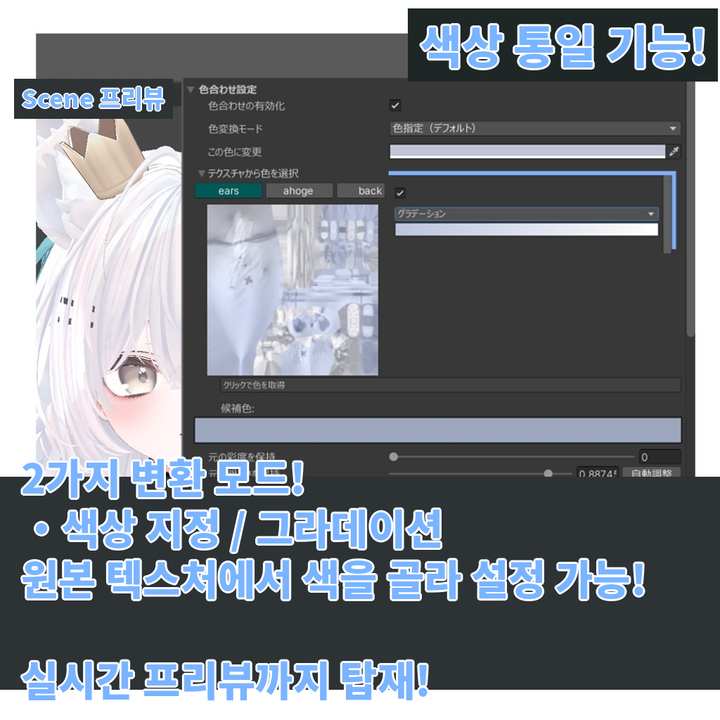
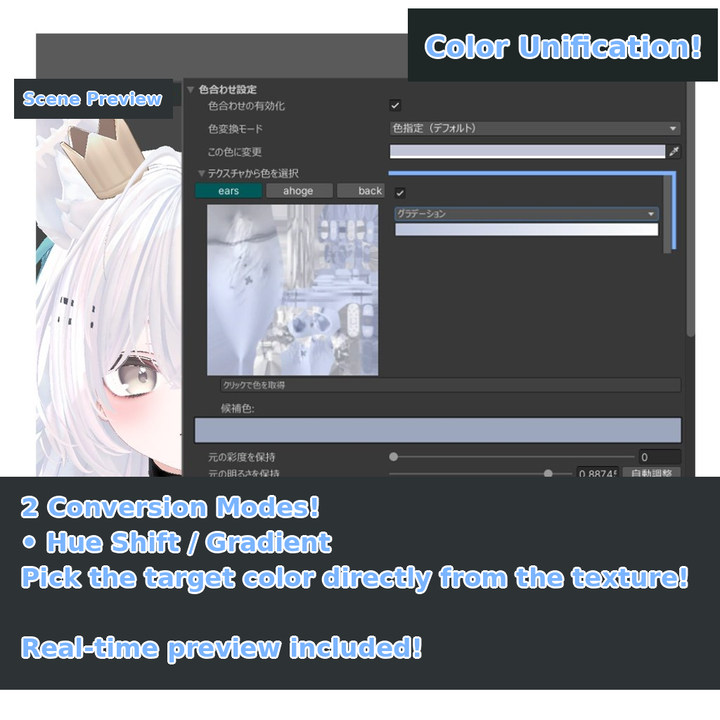
◆ Color Matching
- Hue Shift Mode: Changes only the hue while preserving shading details
- Gradient Mode: Completely replaces light/dark with a gradient curve
- Saturation/Brightness preservation adjustment
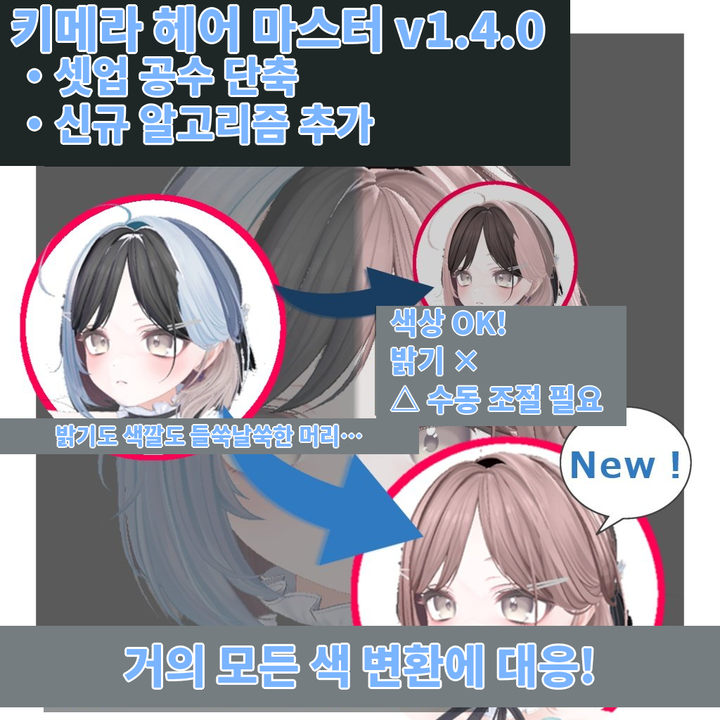
- Brightness Unify Mode (matches to the brightest/darkest texture)
- Per-renderer fine brightness adjustment
- New: ability to ignore color matching for areas specified by a mask
◆ Mesh Integration
- Automatic texture atlas generation (supports 512–4096px)
- Per-UV-island placement adjustment
- Bone integration & rebinding
- Selectable integration target by renderer / sub-mesh
- Parts filtering via the Mesh Cut function
◆ Mesh Deformation (new from v1.1!!)
- Move and reshape individual hair parts
- Deform registered hair shapes with mouse operations
- Export deformed hair as a new mesh
◆ Material Setting Unification
- lilToon shader compatible
- MatCap texture unification
- Probe Anchor & Bounds settings
〇 Mesh Deformation Tool (standalone use of the above feature)
- Mesh deformation by UV island, vertex, or lattice
- Symmetric deformation (left/right, front/back, top/bottom)
- Export as a new mesh
- Non-destructive deformation via NDMF
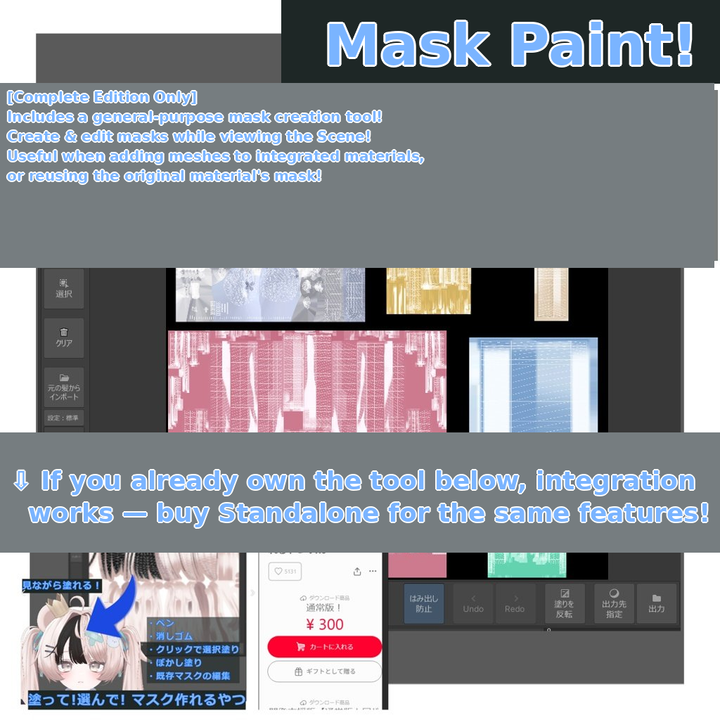
〇 Mask Creation Helper Tool
A tool for editing shader mask textures (2nd color blend, shadow masks, etc.).
Prerequisites
- lilToon: https://lilxyzw.github.io/lilToon/
- NDMF (Modular Avatar): https://modular-avatar.nadena.dev/ja
How to Install
- From the downloaded files, click "Add Chimera Hair Master (Standalone / Mask Tool Bundled) to VCC" to add the repository to VCC/ALCOM ※ If the link file doesn't open: paste the URL inside "ALCOMで開かない場合の対処.txt" into the VCC/ALCOM repository-add field
- From each project's Manage Project / 管理 button, import 「キメラヘアマスター」 (and 「マスク作成支援ツール」)
How to Use
◆ Chimera Hair Master
- From the menu, select 「キメラヘアマスター > ウィンドウを開く」 ※ From v1.4 onwards, manual avatar assignment is no longer needed.
- Register the hair renderers you want to integrate (drag-and-drop hair parts from the Hierarchy)
- Click the 「Set Up」 button
- Choose a color mode and set your target color
- Adjust while checking the preview
- Upload your avatar (NDMF processes everything automatically)
◆ Mesh Deformation
- In the Inspector of the Chimera Hair Master GameObject, enable the 「Mesh Deformation」 ✅ checkbox
- Click the part-deformation / vertex-deformation / overall-shape-adjustment buttons to switch the Scene to editing mode
- Deform with mouse operations
- Even without exporting the mesh, the changes apply to the avatar on upload
- Deformation data can also be exported as BlendShapes ※ BlendShape export does not support non-destructive workflows. Use mesh export / Export instead.
◆ Mask Creation Helper Tool (included in Complete Edition)
- From the menu, select 「キメラヘアマスター > マスク作成支援ツール」
- Select the target GameObject and material
- Paint masks with the pen tool or island selection
- Check with the visibility preview
- Output and apply to the material
- Compatible with meshes integrated by Chimera Hair Master
◆ Mesh Deformation Tool (standalone use)
- Select 「キメラヘアマスター > メッシュ変形」, assign a GameObject, and proceed with setup