Description
PostFX Spout — Warudo Plugin
"PostProcess effects streamed out — alpha intact."
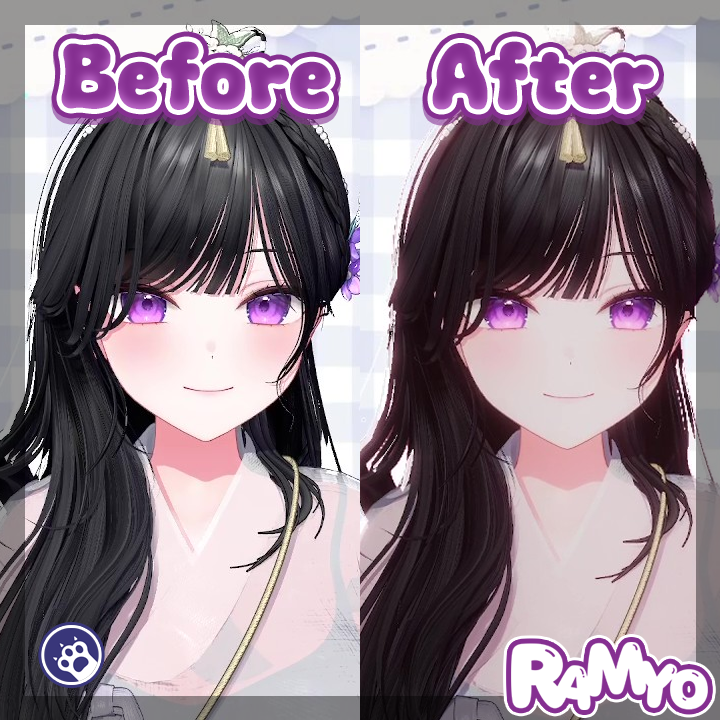
A Warudo plugin that captures the main camera's PostProcess result and sends it via Spout with the alpha channel fully preserved.
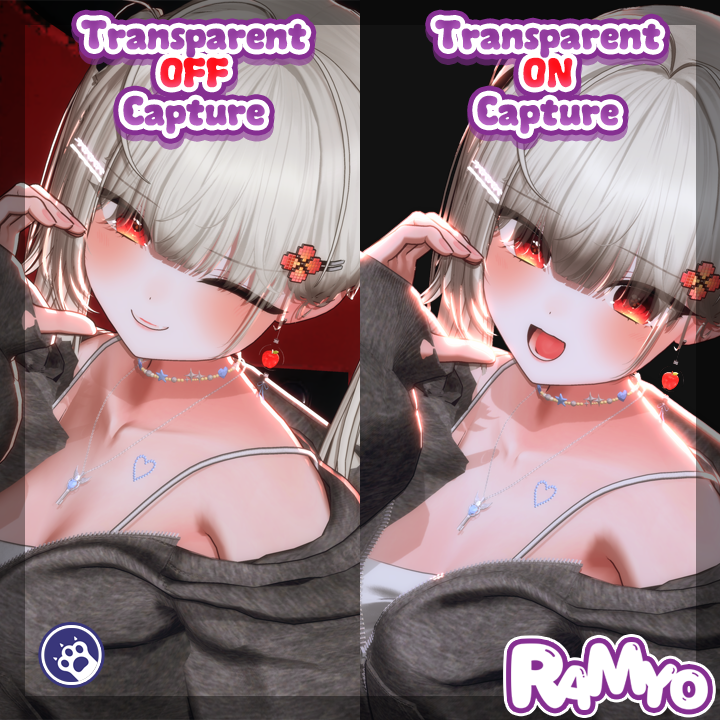
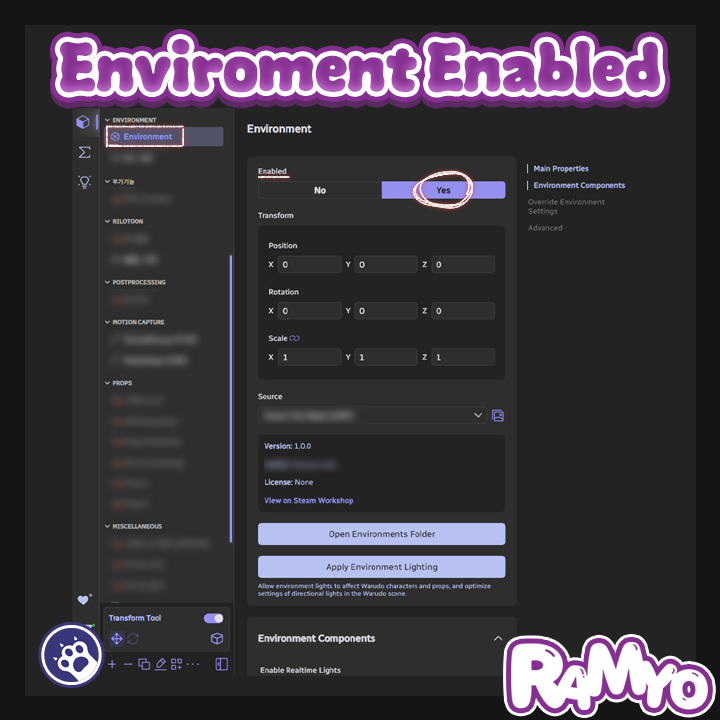
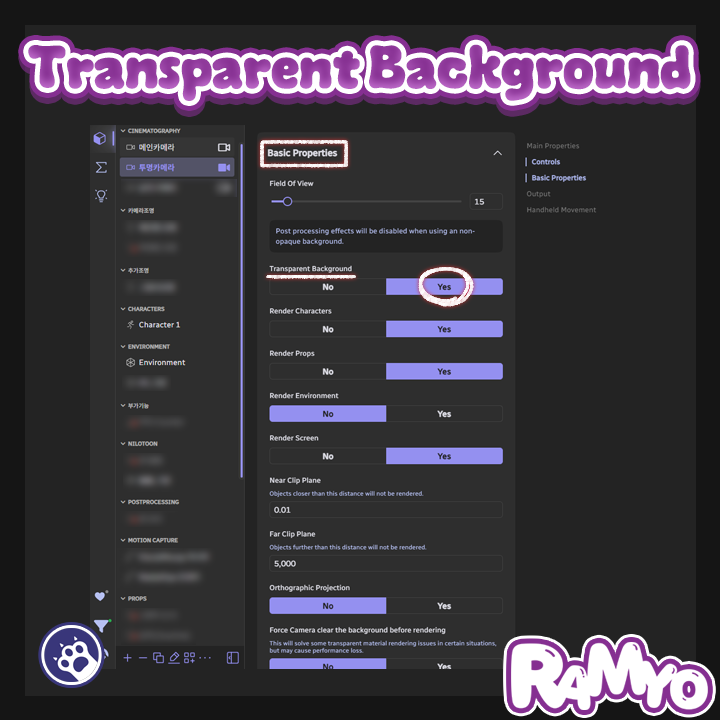
With standard Spout output, enabling PostProcess causes the alpha channel to disappear. Getting alpha back requires TransparentBackground or ChromaKey mode, but those modes affect certain PostFX. PostFX Spout bypasses that limitation entirely — it streams a PostProcess-applied output with alpha preserved regardless of the TransparentBackground / ChromaKey state.
◆ Key Features
● PostProcess + Alpha Simultaneous Output
Streams the PostFX-applied result with the alpha channel preserved, independent of TransparentBackground / ChromaKey settings.
● URP / BiRP Auto-Detection
Automatically detects the current render pipeline and supports both URP and BiRP.
● Source Camera Selection
Freely choose which camera to stream. Leave it empty and the main camera is used automatically.
● Keep Alpha Toggle
Disable alpha preservation when needed and stream RGB only.
● Multi-Language
Available in English, Korean, Japanese, and Simplified Chinese.
◆ Usage Examples
Scenario → Result
─────────────────────────────────────
PostFX + alpha output → Composite a PostProcess-rendered character in OBS with clean transparency
No ChromaKey needed → Transparent composite without a green screen
◆ Installation
1. Download the .warudo file.
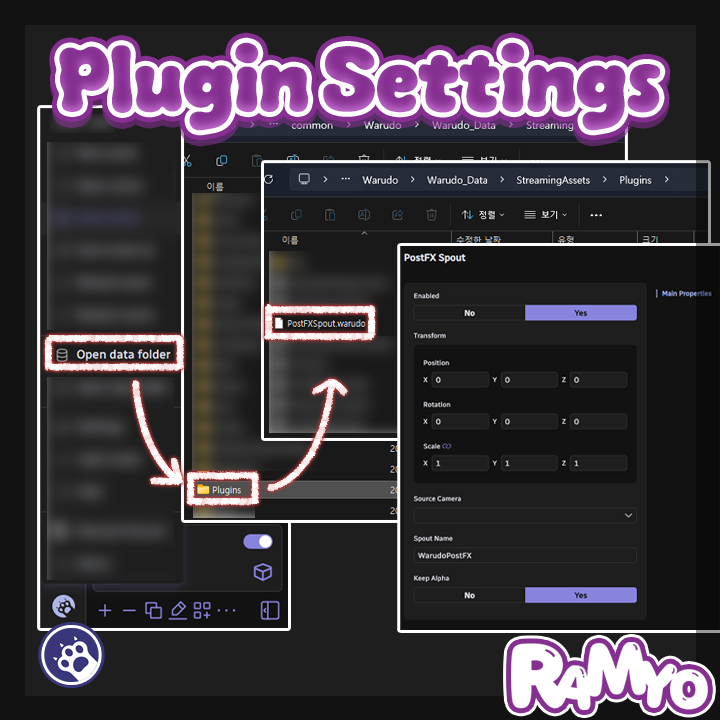
2. Place the file in the `Warudo\Warudo_Data\StreamingAssets\Plugins` folder.
3. Restart Warudo.
4. When the PostFX Spout asset is available in the Scene Asset add menu, installation is complete.
◆ Setup
1. Open the Scene Asset add menu in Warudo and add the `PostFX Spout` asset from the `PostFX Spout` category.
2. Set `Source Camera` to the camera you want to stream (leave empty to use the main camera automatically).
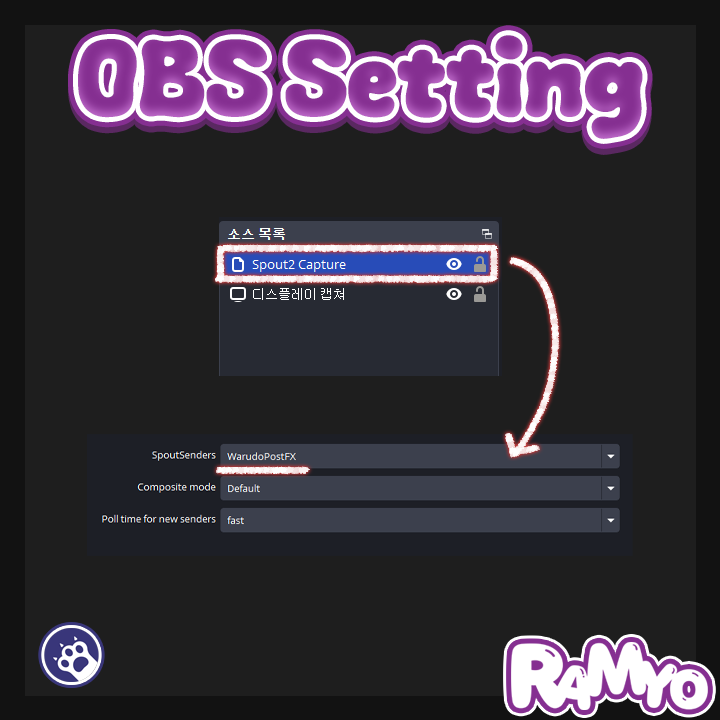
3. Enter the sender name in `Spout Name` — this is what OBS and other receivers will see (default: `WarudoPostFX`).
4. Leave `Keep Alpha` enabled to stream PostProcess output together with the alpha channel.
5. Add a Spout source in OBS or any other Spout-compatible application using the name you entered.
◆ License
This plugin is licensed per individual user.
For commission work, both the creator who sets it up and the streamer who uses it must each purchase their own license.
Sharing a single license between multiple people or redistributing it is prohibited.
For corporate or business use, please contact us separately.