
Description
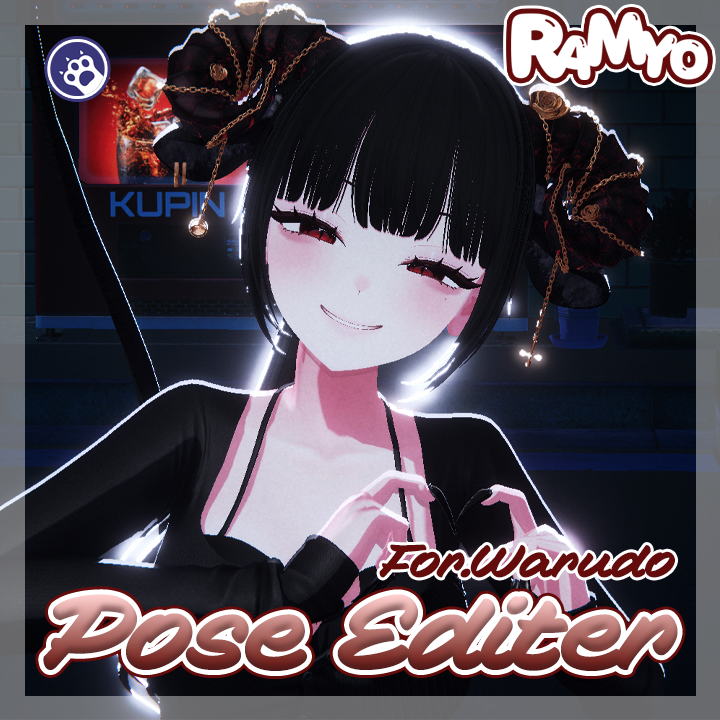
Pose Editor · Warudo Plugin
"Drag the bones into a pose, bring it back with a preset."
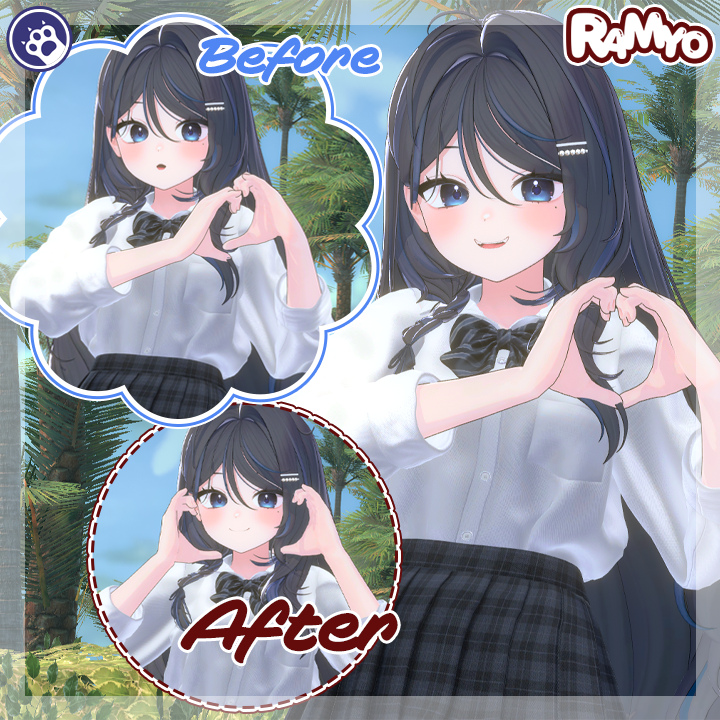
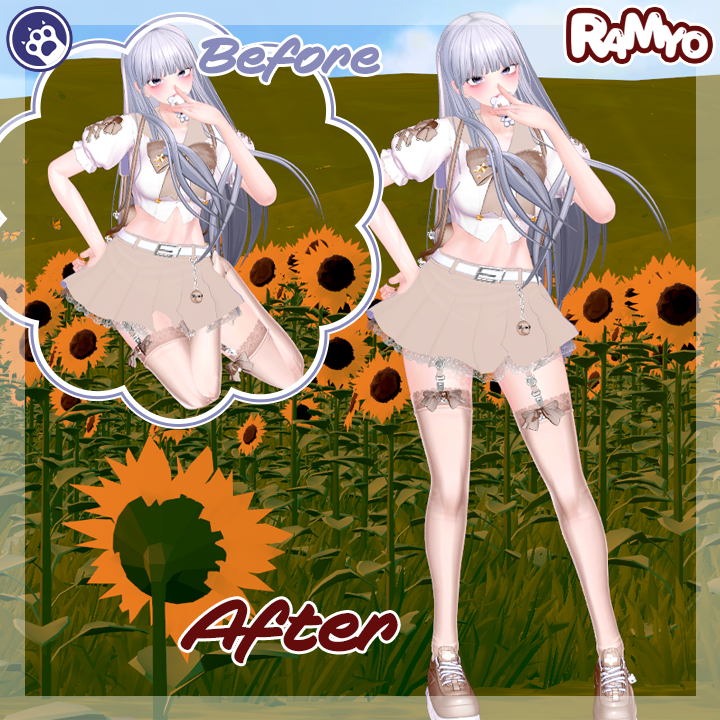
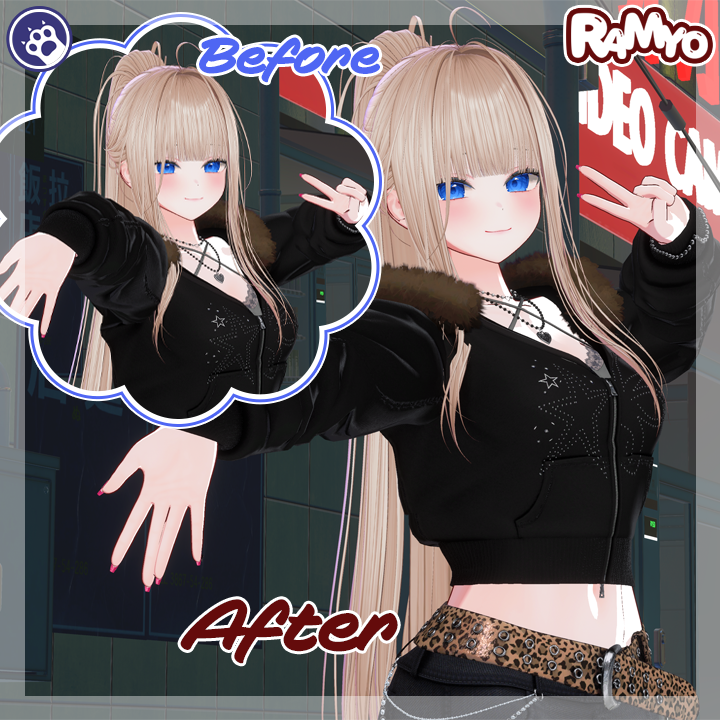
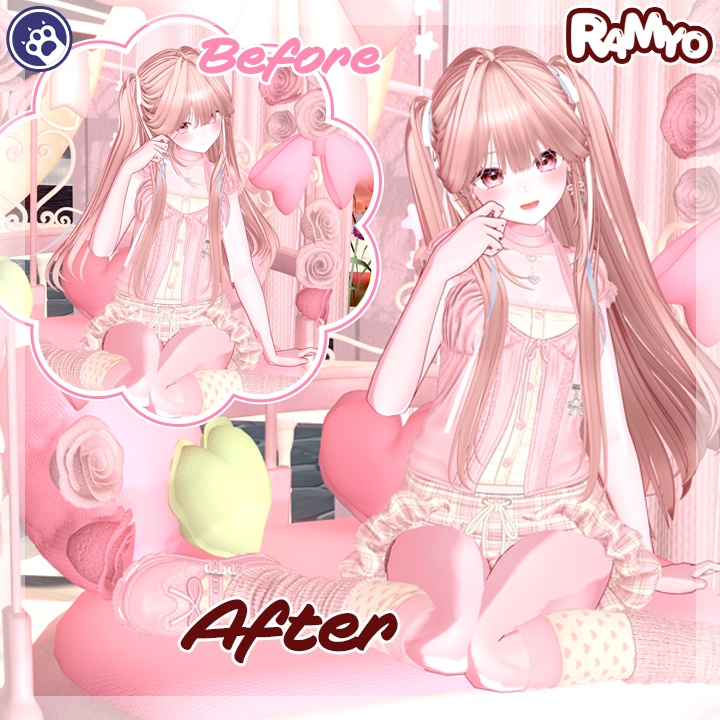
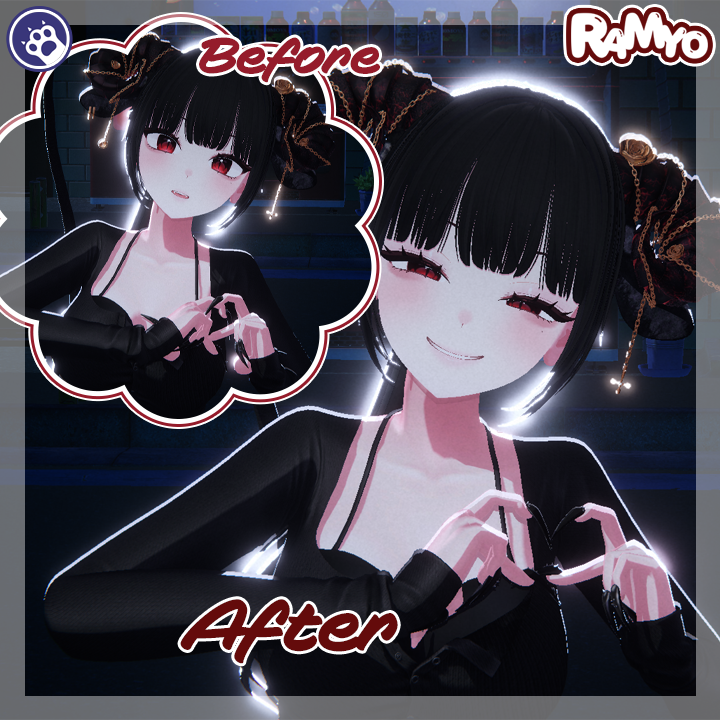
A Warudo plugin for posing humanoid bones by dragging gizmos in the viewport, then saving and reusing poses as presets.
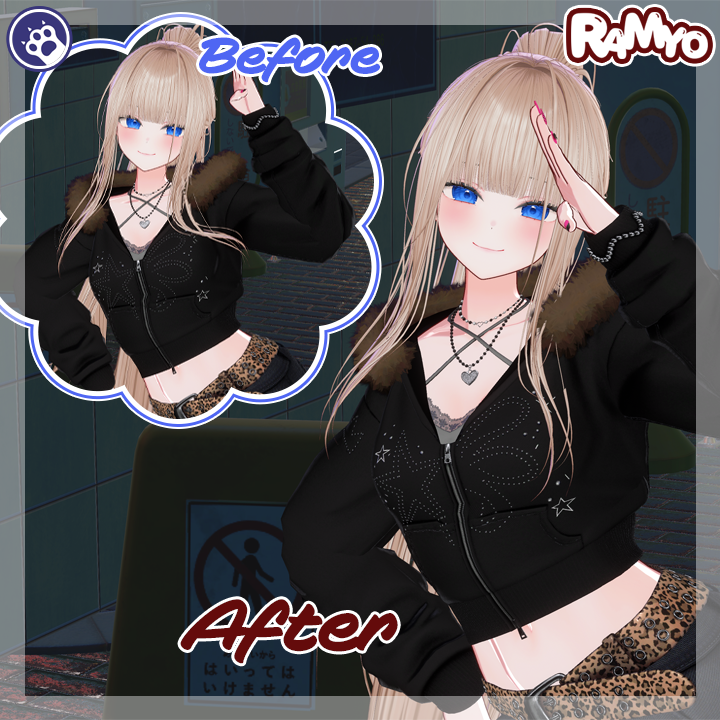
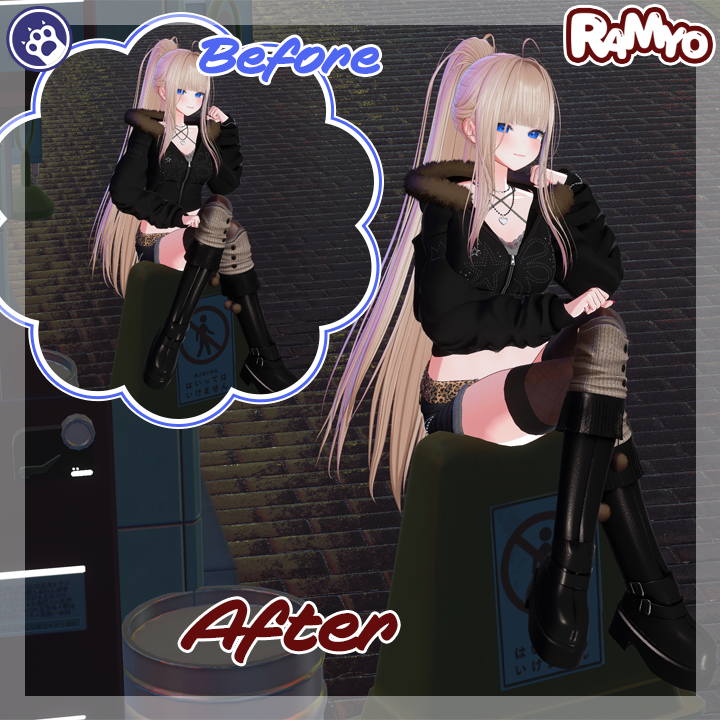
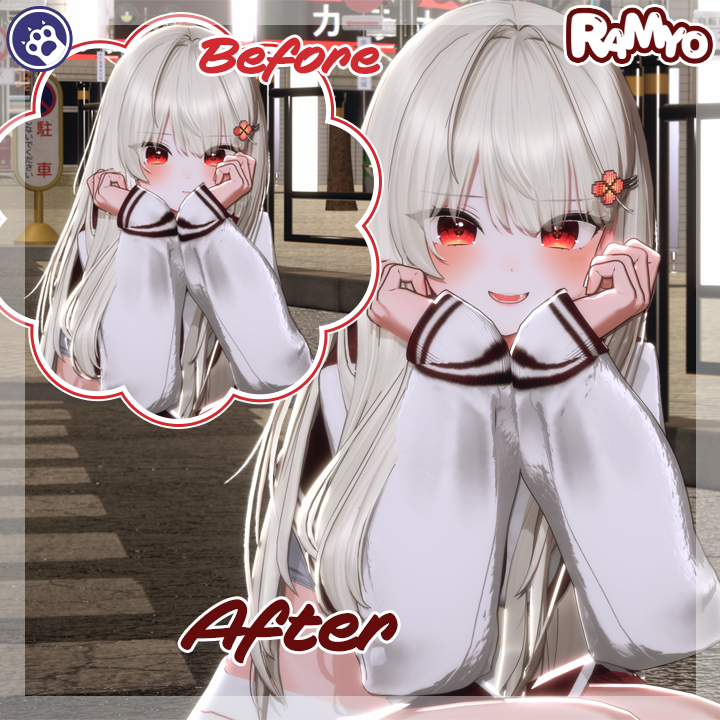
Posing arms and legs freely in stock Warudo is cumbersome. Pose Editor lets you click a bone (or pick it from a list) and drag its gizmo, and IK carries the connected chain (elbow, shoulder, knee) naturally. You can curl fingers too, then name a finished pose, save it as a preset, and load it back anytime.
◆ Key Features
● Gizmo-Drag Posing
Manipulate humanoid bones with move/rotate gizmos in the viewport. Drag a wrist or foot and the upper chain follows naturally.
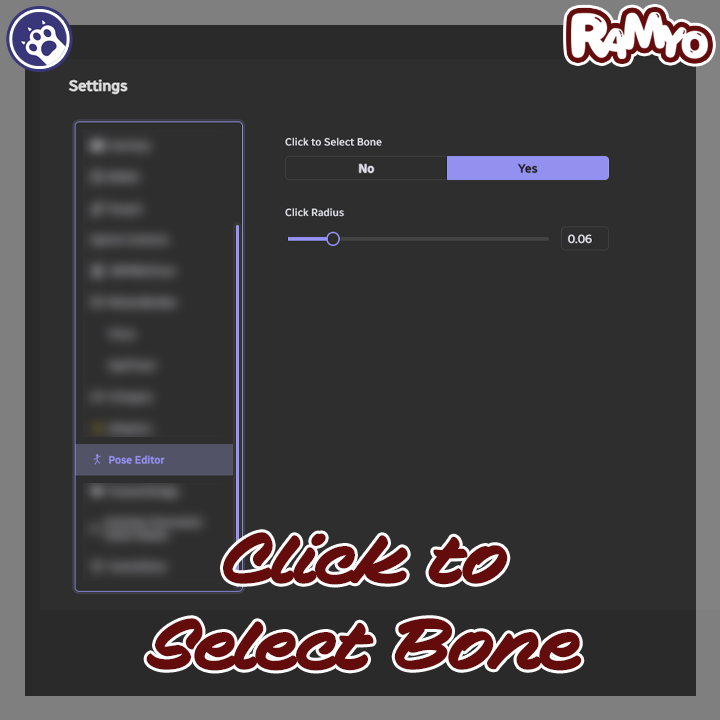
● Click to Select Bone
Click a character bone on screen to select it instantly. Click radius is adjustable in settings.
● IK Chain Follow (CCD IK)
Drag an end effector like a wrist or foot and connected bones (elbow, shoulder, knee) follow via IK.
● Per-Finger Control
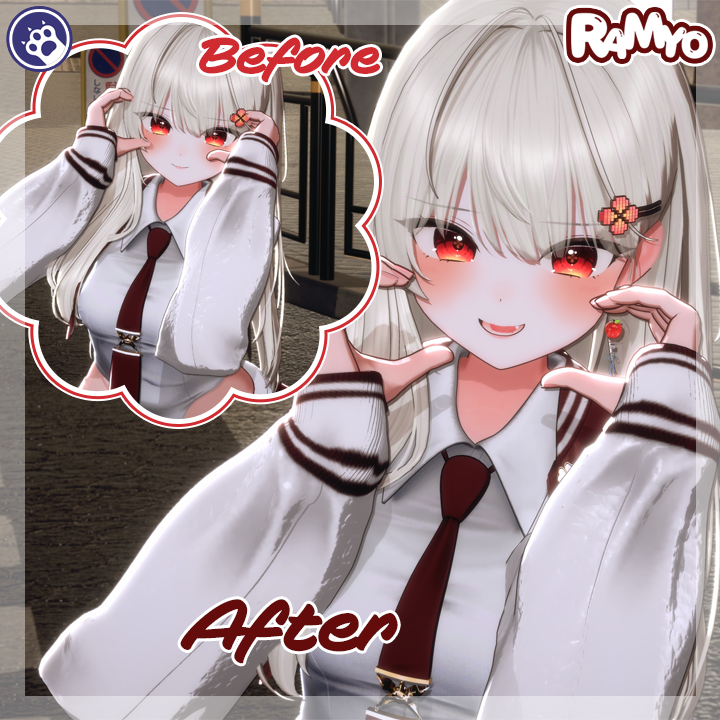
Select any of the ten fingers by segment and curl the fingertips.
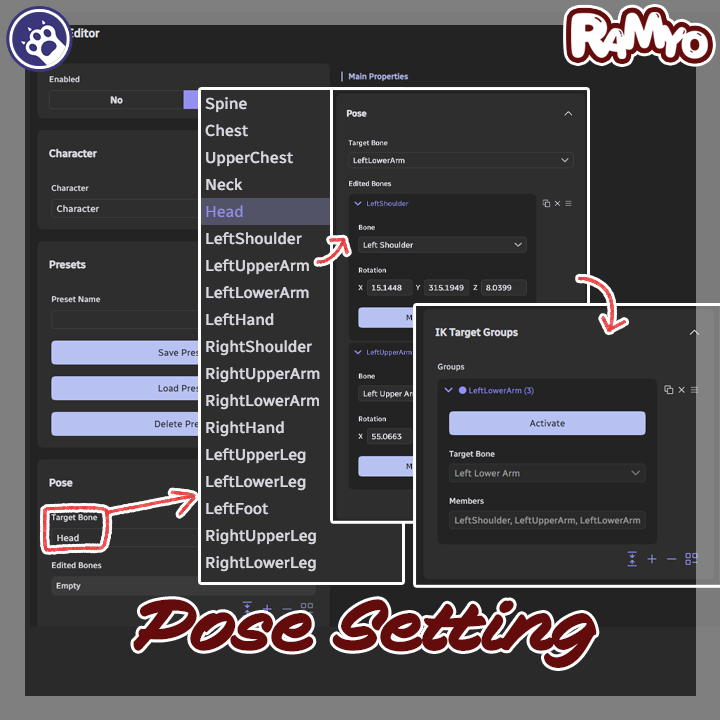
● IK Target Groups
Group manipulated bones into editing units, manage them in a list, and re-activate any group to keep adjusting.
● Bone Angle Fine-Tuning + Mirror
Fine-tune edited bones by angle value in a list, and mirror one limb's pose to the other side.
● Save / Load / Delete Presets
Name a finished pose to save it, then load or delete it whenever you like.
● Blueprint Node
The `Load Pose Preset` node loads a saved preset automatically within a blueprint flow.
● Multi-Language
Available in English, Korean, Japanese, and Simplified Chinese.
◆ Installation
1. Download the .warudo file.
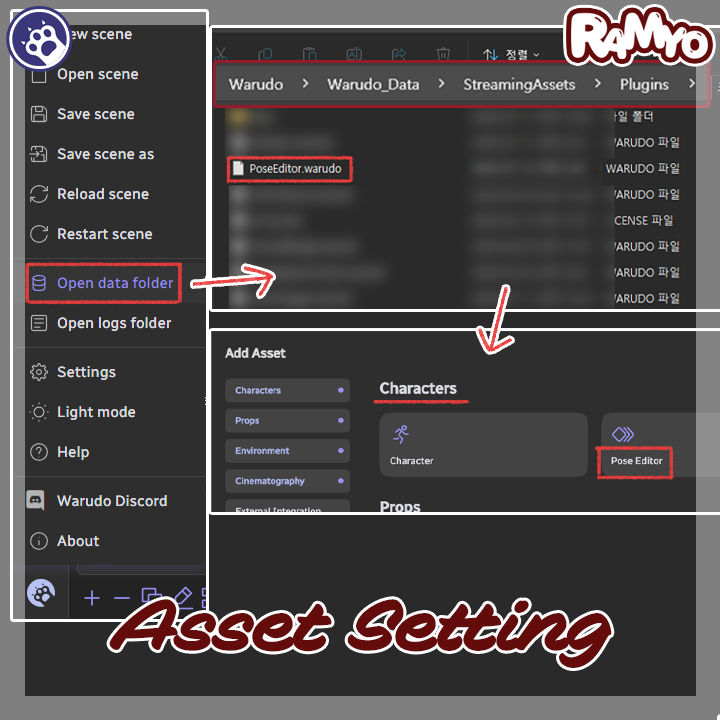
2. Place it in the `Warudo\Warudo_Data\StreamingAssets\Plugins` folder.
3. Restart Warudo.
4. Installation is complete once Pose Editor appears under `Characters` in the Scene Asset add menu.
◆ Setup
1. Open the Scene Asset add menu and add `Pose Editor` from `Characters`.
2. Set `Character` to the character to pose (leave empty to use the active character).
3. Pick a `Target Bone`, or click a bone in the viewport to select it.
4. Drag the gizmo to build the pose (move for IK follow, rotate for individual rotation).
5. Pose fingers via `Finger /` entries in the `Target Bone` dropdown, or by clicking.
6. Enter a `Preset Name` and press `Save Preset` to store it.
7. Reapply with `Load Preset`, or remove with `Delete Preset`.
◆ License
This plugin is licensed per individual user.
For commission work, both the setup creator and the streamer using it must purchase a license.
Sharing or redistributing one license among multiple people is prohibited.
For corporate or business use, please contact us separately.




