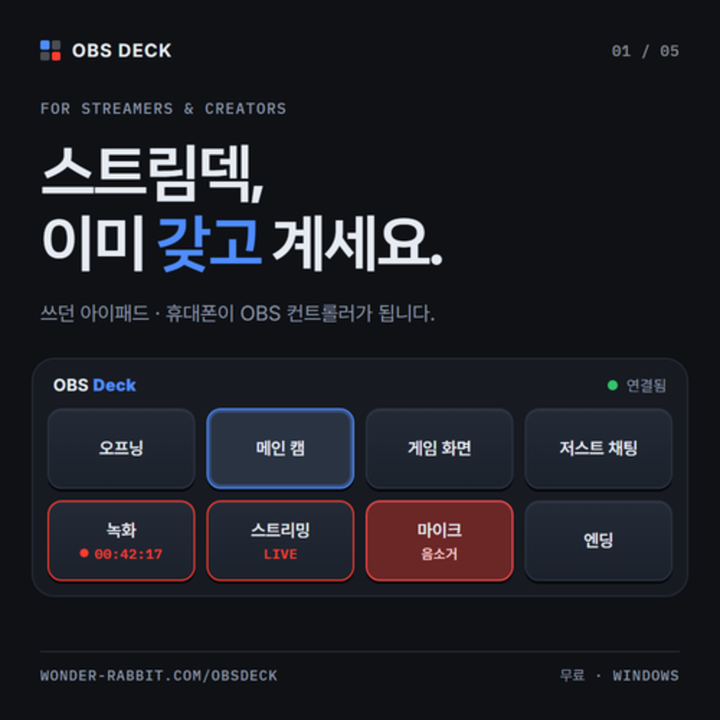
Description
OBS Deck — Turn your iPad or phone into a stream deck for OBS
OBS Deck is a Windows app that turns the iPad or phone you already have into a controller for OBS Studio.
Scan a QR code on the same Wi-Fi and switch scenes, start recording or streaming, and mute your mic right from your fingertips.
No extra hardware and no OBS plugin to install.
[Key features]
- Switch scenes and toggle recording, streaming and the virtual camera, with live status on every button
- Mute your mic or desktop audio, show or hide sources, and trigger OBS hotkeys
- Keep your chat or overlay pages in view inside the app (on an iPad in landscape, buttons and chat sit side by side)
- Connect several devices at once and they all stay in sync; lock access with an optional PIN
[CHZZK donation alerts]
- Just paste your CHZZK channel address to show donation and subscription alerts on your stream (no login needed)
- Alerts play a sound and read the donor's message aloud; customize the text, image and colors to match your stream
- Use the donation remote on your phone or iPad to skip, replay or pause alerts
(on a PC, you can also dock it inside OBS)
[Made to be easy]
- The installer walks you through everything, from choosing your language to connecting OBS
- Runs quietly as a small icon in the bottom-right corner of your screen, with no black window, and can start automatically with Windows
- Settings take effect right away, no restart needed
- Get notified when a new version is out and update with one click
- Available in Korean, English and Japanese
[Getting started]
1. In OBS Studio, open Tools → WebSocket Server Settings and turn on "Enable WebSocket server".
2. Install and launch OBS Deck.
3. Scan the QR code on screen with your phone or iPad camera. That's it.
[Requirements]
- Windows 10 or 11 (64-bit)
- OBS Studio 28 or later
- A phone or iPad with a web browser on the same Wi-Fi