Description
■ Lavy
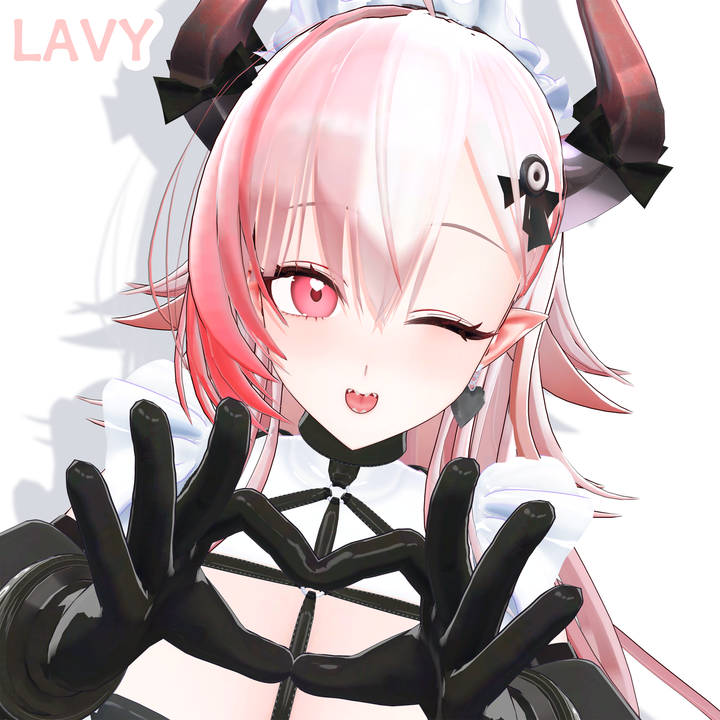
This is an original VRChat avatar featuring a demon maid concept.
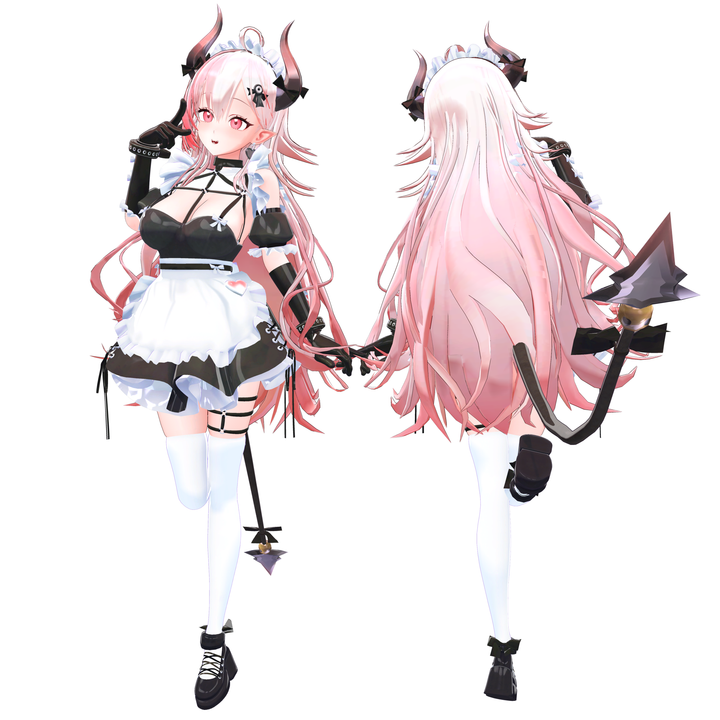
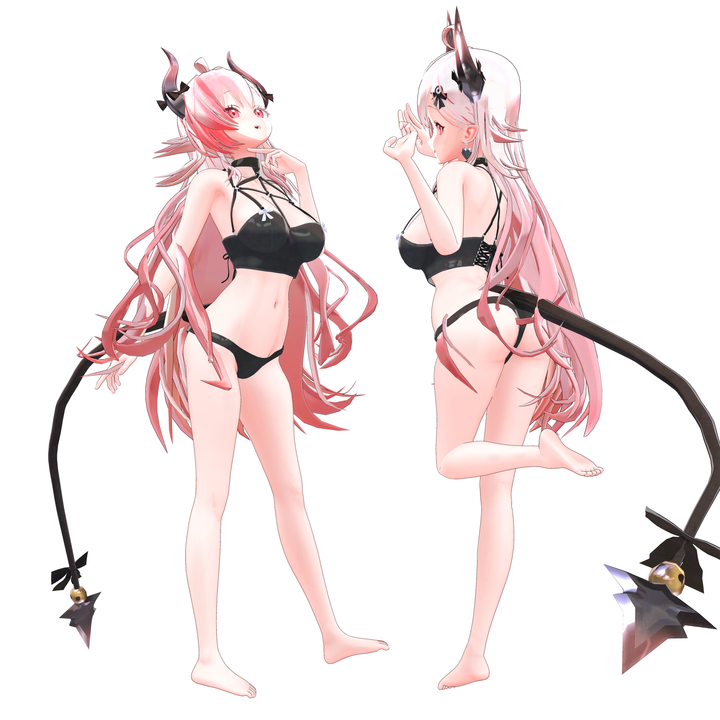
She is characterized by horns, a tail, and long hair with a pink and white gradient.
She wears a gothic maid outfit that combines a harness and an apron.
■ Specifications
・Polygon count: △190,099 tris (VRChat performance rating: Very Low)
- Body: 55,456 tris
- Hair: 21,547 tris
- Outfit: 113,096 tris
· Mesh count: 22
· Material count: 9
・Shader: lilToon v2.3.4
· Supported platform: PC (Not compatible with Quest)
・Supports VRChat Avatar 3.0
・Physics bone compatible
・Lip sync (viseme) compatible
・Full tracking support *No actual device testing was performed due to lack of trackers in the creator's environment. Rigging is supported, but please contact us if any issues arise after installation.
・Includes PSD files
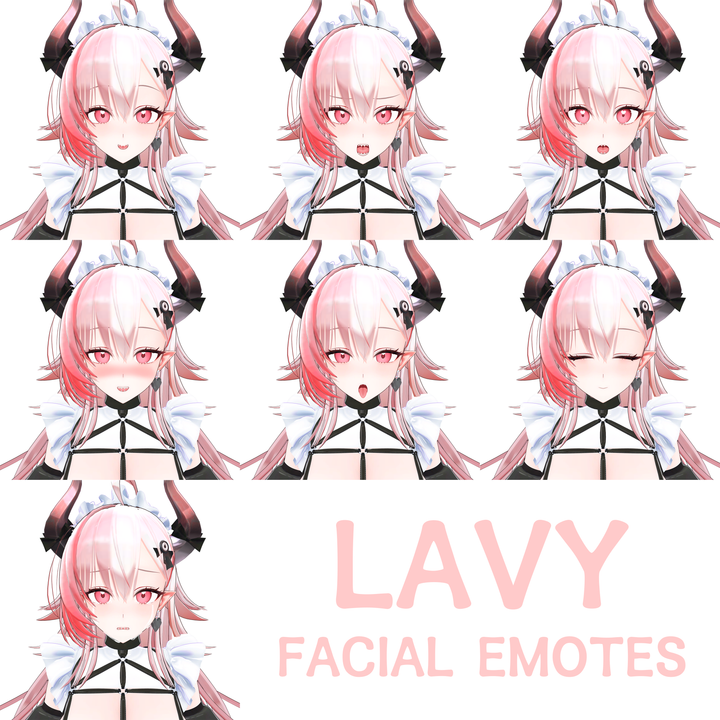
· Morph keys: Approximately 660 types (including MMD compatible keys), about 72 for the body
・AFK gestures: Not supported
* Due to excessive polygon count and other factors, the performance rating is set to Very Low. Some world events may have entry restrictions, so please check before purchasing. We recommend a high-performance PC environment.
■ Included contents
· Unity package
・ FBX files
· Textures (PNG)
・ Original PSD files
■ Installation guide
【1】 Install VCC (VRChat Creator Companion)
If you do not have VCC yet, please install it first from the official website below. https://vcc.docs.vrchat.com/ When installing VCC, you will also be guided to install Unity Hub and the required Unity Editor version.
Please follow the on-screen instructions step by step.
(Unity 2022.3.x series is commonly used for VRChat avatar creation.)
[2] Import lilToon shader (required, free)
This avatar uses lilToon v2.3.4 shader.
Please download it for free from the link below and import it before creating this package.
lilToon (free): Downloaded from Booth https://booth.pm/ja/items/3087170 ・File (.unitypackage)
Drag and drop into the Unity Editor running your VRChat project.
· When the import window appears, select all options and click the import button.
【3】 Import Lavy avatar package
After completing steps 1 and 2, the Unitypackage file for this product will be generated.
Import the assets by dragging and dropping into the Unity Editor in the same way.
[4] Upload the avatar
1. Drag the imported Lavy prefab from the project window into the hierarchy (scene)
2. Open the VRChat SDK window (Menu: VRChat SDK > Show Control Panel)
3. Log in on the Builder tab, then select the avatar prefab to upload.
4. Set the name, description, and visibility (public/private), then click the upload button.
■ Common issues
· The avatar appears pink, and → the small toon shader is not imported.
The import order may be incorrect. Please review steps 1 and 2 again.
・ VRChat SDK account login status → Upload button does not work.
Please check the avatar descriptor settings.
■ Production environment
· Created with Blender version 5.0 or higher
■ Terms of use (License) - VN3 License compliance
· Personal use: Allowed for non-commercial purposes only
· Corporate use: Not allowed
・ Upload to SNS/game platforms: Allowed
・ Permission to use service by third parties: Not allowed
・ Sexual content (R-18): Allowed
・ Violent content: Allowed (classification must be specified)
· Political or religious activity use: Not allowed
· Modification and adjustment: Possible
· Redistribution of unmodified state: Not allowed
· Distribution of modified data: Not allowed
· Video and broadcasting use: Possible
· Publications, 3D modeling (products), product software introduction: Not allowed
・ Derivative works (including costume creation and use of mesh weights): Allowed for both commercial and non-commercial purposes, distribution allowed
· Credit notation: Not mandatory (© simsimhea0 recommended)
· Transfer of rights and obligations: Not allowed